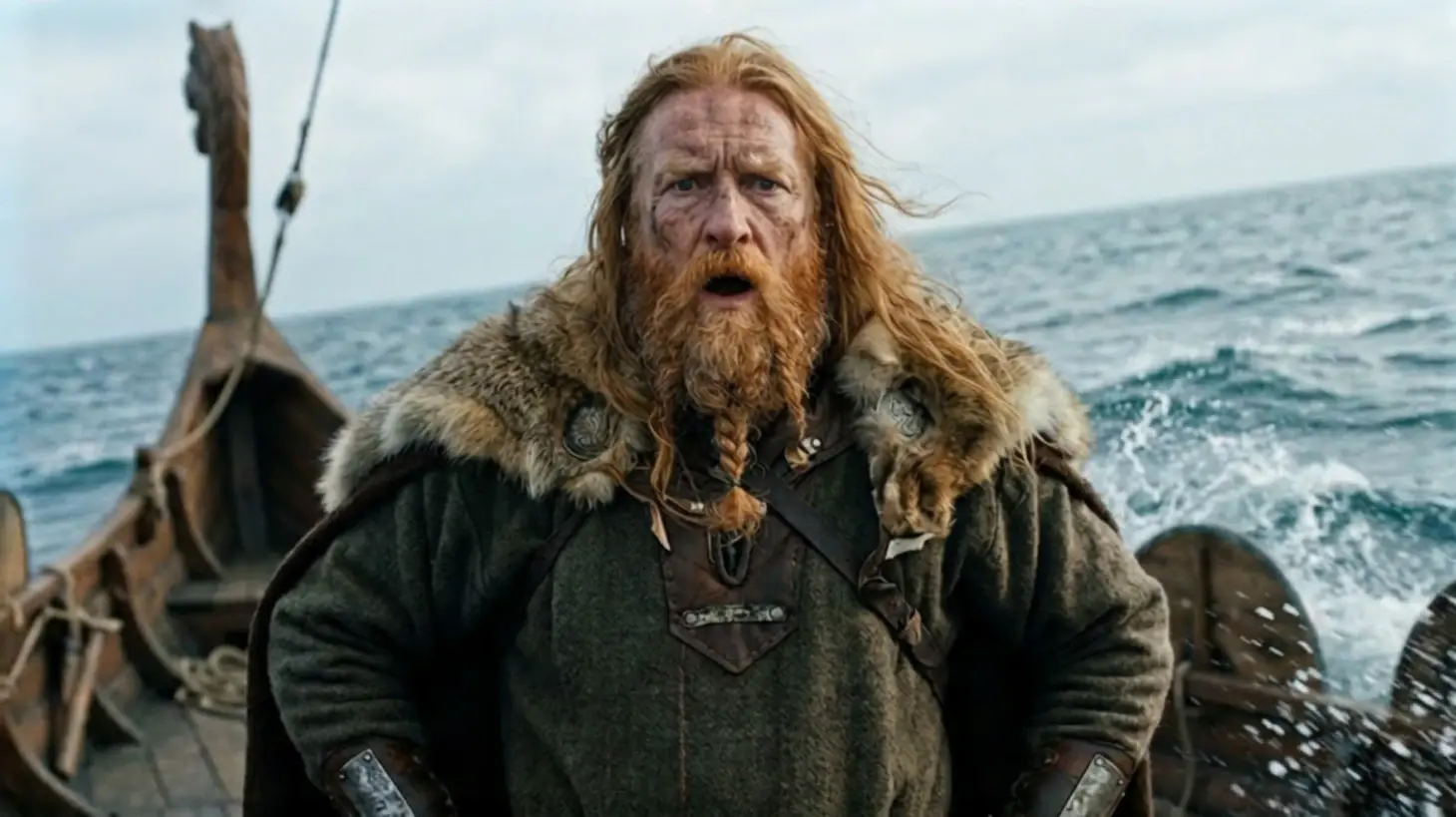

- IC-LoRA (In-Context LoRA) transfers structure and motion from reference videos into LTX-2 generations, enabling precise control over camera movement, scene geometry, and human performance without relying on text prompts.
- Three IC-LoRA modes: Canny (edge preservation), Depth (camera/3D geometry), Pose (human motion)
- Works in both image-to-video and text-to-video modes
- Motion comes from reference video; prompts control visual style only
- Run one IC-LoRA group at a time to avoid memory issues
- Similar to ControlNet for images, but applied frame-by-frame across video
- Best results require aligning the first frame with reference video in I2V mode
- Quick workflow: Load reference video → Choose IC-LoRA mode (Canny/Depth/Pose) → Write style-focused prompt → Generate with motion locked to reference.
IC-LoRA (In-Context LoRA) is a powerful control mechanism in LTX-2 that separates motion from visual styling. Instead of describing camera movements or character actions in text prompts, IC-LoRA extracts structure and motion directly from reference videos and applies them to entirely new generations.
This tutorial walks through the official LTX-2 IC-LoRA workflow in ComfyUI, explaining when to use each IC-LoRA mode, how the preprocessing pipeline works, and best practices for high-quality motion transfer.
What Is IC-LoRA?
IC-LoRA (In-Context LoRA) transfers the structure and motion from a reference video onto a completely new generation while allowing you to reimagine the visual style through text prompts.
The workflow enables you to:
- Lock camera movements from reference footage
- Preserve scene geometry and spatial relationships
- Transfer human motion and performance to different visual styles
- Maintain temporal consistency across frames
This approach is conceptually similar to ControlNet for images, but applied across multiple frames in video.
The Three IC-LoRA Modes
The LTX-2 IC-LoRA workflow includes three separate IC-LoRA groups, each designed for different types of structural control.
Canny IC-LoRA: Edge Preservation
What it extracts: Edge maps and outlines from the reference video
Best for:
- Preserving shot composition and framing
- Maintaining silhouettes and structural boundaries
- Stylized outputs where clean shapes matter more than photorealism
Use case: When you need to keep the compositional structure of a shot while changing everything else—ideal for animation, illustration styles, or abstract visuals.
Depth IC-LoRA: Camera Movement and 3D Geometry
What it extracts: Depth maps and spatial scene geometry
Best for:
- Camera movement (pan, tilt, dolly, crane shots)
- 3D structure and spatial relationships
- Parallax and depth-aware motion
Use case: Cinematic shots where camera motion is critical—tracking shots, establishing shots, or any scenario requiring precise camera control and spatial coherence.
Pose IC-LoRA: Human Motion Transfer
What it extracts: Skeleton joints and body movement using DWPose
Best for:
- Dance choreography
- Complex body movements
- Athletic or action sequences
- Performance capture
Use case: Transferring human motion to different characters or visual styles while preserving the exact timing and performance of the original—perfect for stylized character animation or motion retargeting.
Workflow Setup: Loading Reference Assets
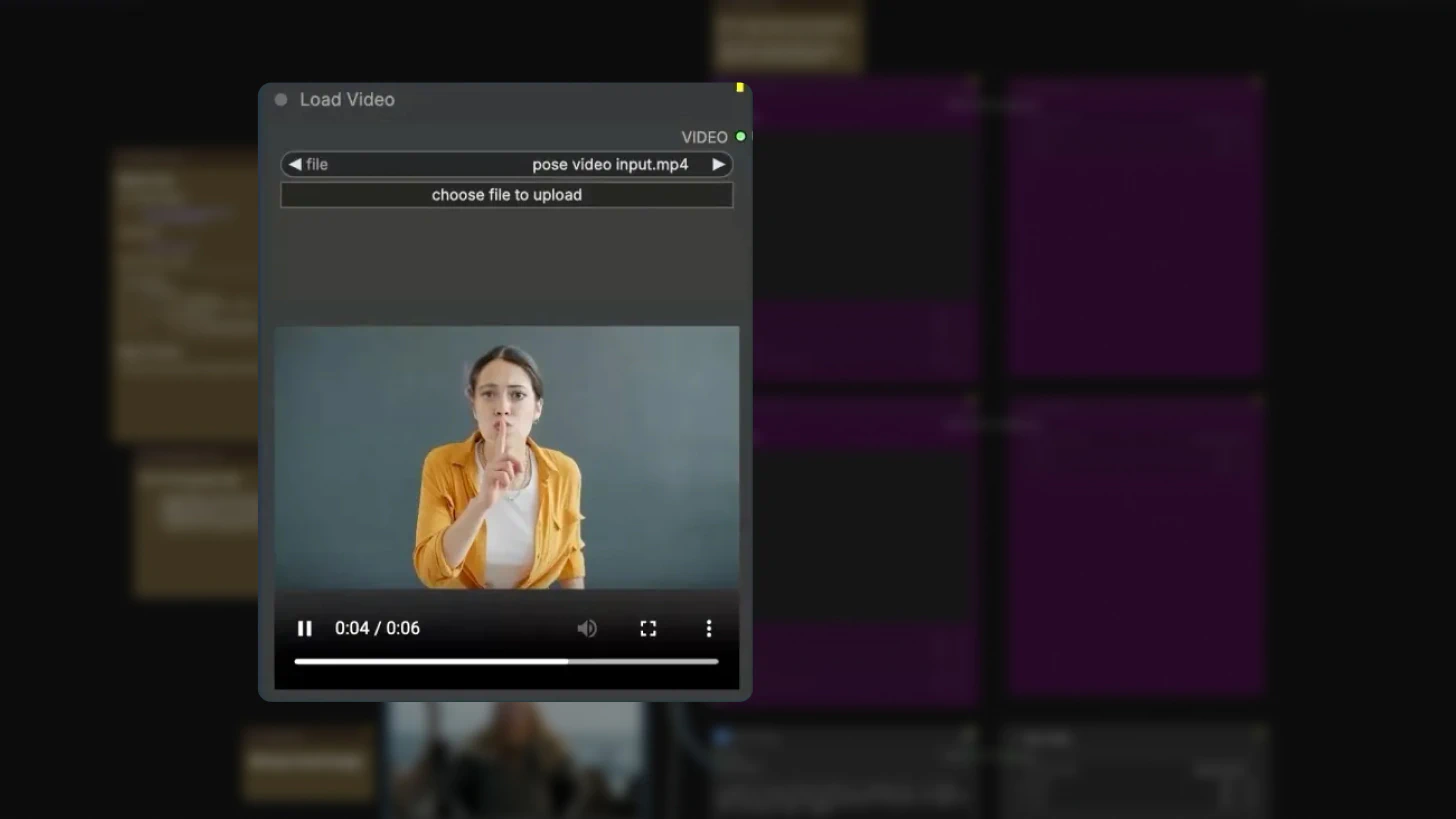
Step 1: Load Reference Video and Image
The workflow requires two inputs:
Load Video node:
Upload your reference video containing the motion you want to transfer.
Reference Image:
Even when running in text-to-video mode, an image input is required for the workflow to execute.
Step 2: Choose Generation Mode
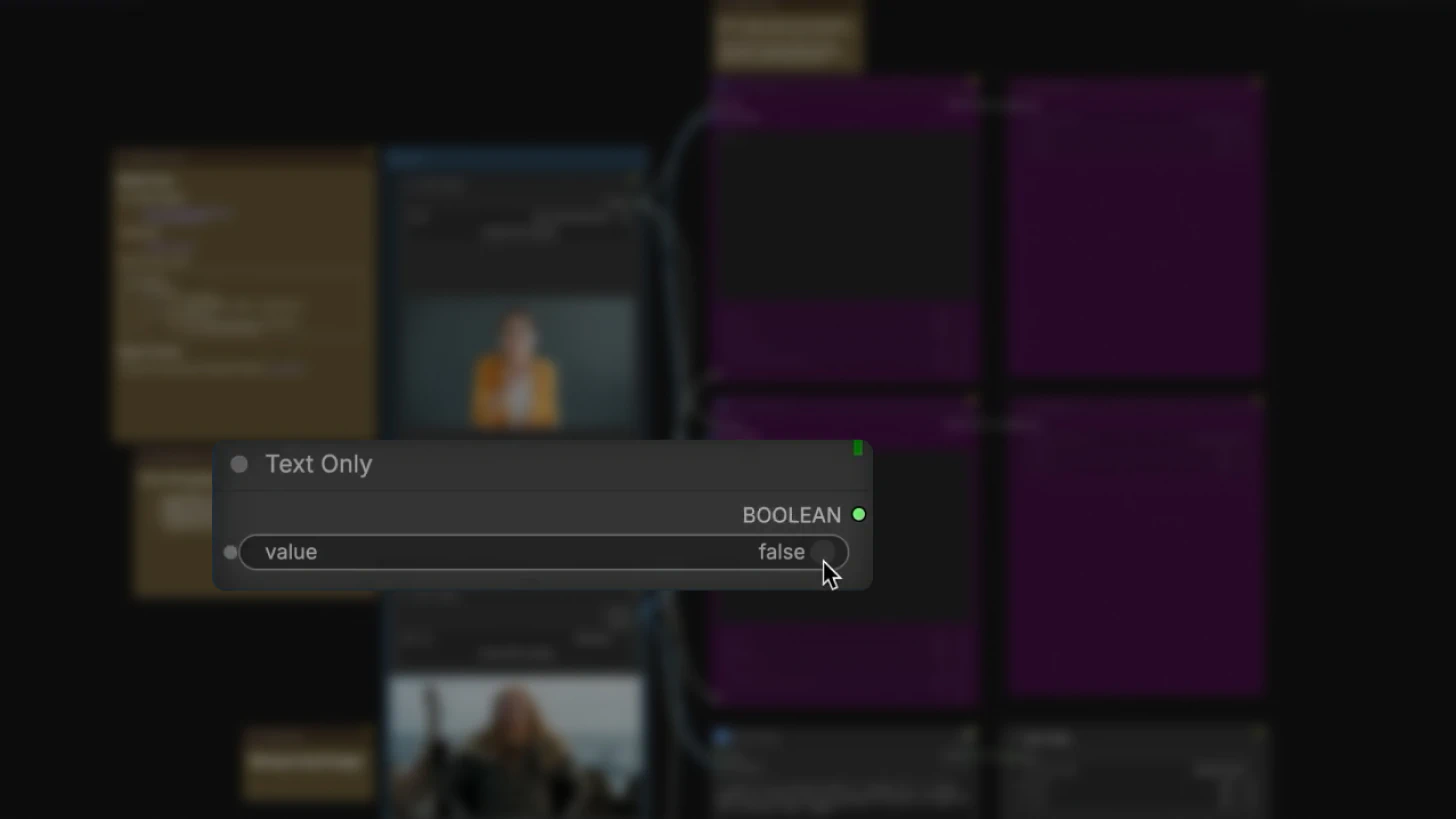
The workflow supports two modes controlled by the text-to-video switch (set to false by default):
Image-to-Video Mode (switch = false)
- Uses a custom-generated image as the starting point
- Animates from that image while following the reference video's motion
- Critical: For best results, generate the first frame using ControlNet or another image model derived from your reference video's first frame
- Misalignment between your starting image and reference video can cause jump cuts or visual artifacts
Text-to-Video Mode (switch = true)
- Generates all video pixels from scratch based on your prompt
- Still strictly adheres to the structure and motion of the reference video
- No image alignment required, but motion control comes entirely from the reference
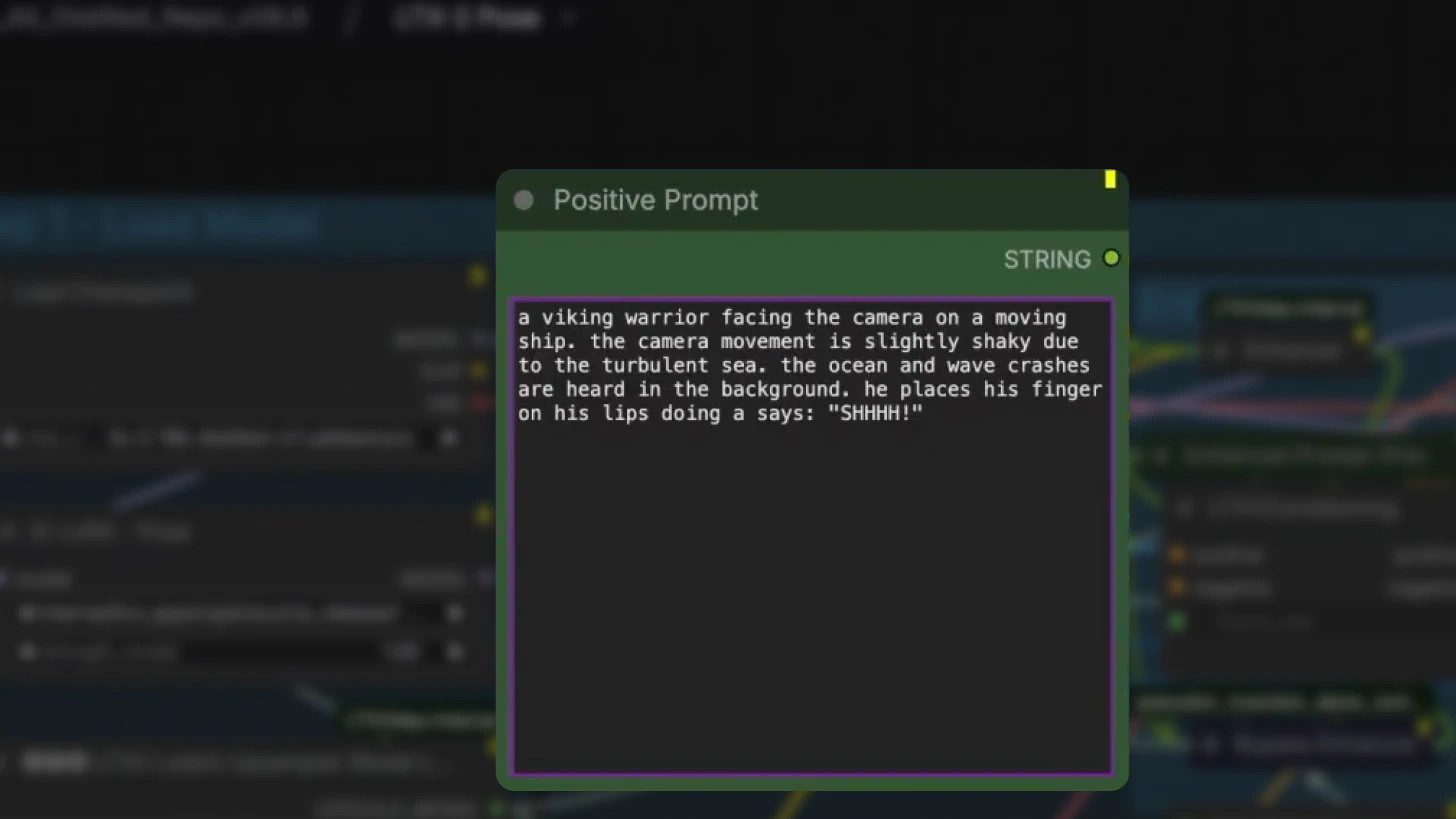
Prompting Strategy for IC-LoRA
Since motion is handled by the IC-LoRA itself, your prompting approach must change. For comprehensive prompting techniques and examples tailored to LTX-2, refer to the LTX-2 Prompting Guide.
What to Include in Prompts
Focus on visual characteristics only:
- Visual style and aesthetic (e.g., "cinematic noir lighting", "watercolor painting style")
- Subject description (character appearance, clothing, features)
- Background elements (environment, scenery, objects)
- Textures and materials (surface qualities, finishes)
- Lighting (mood, time of day, color grading)
What NOT to Include
Avoid describing motion:
"Camera pans left"
"Character walks forward"
"Slow zoom in"
Motion is automatically derived from the reference video. Describing it in the prompt creates conflicting instructions and degrades output quality.
Inside the IC-LoRA Workflow Architecture
Most of the workflow is packaged into subgraphs for convenience, but understanding the internal structure helps with customization.
Core Components (Using Pose IC-LoRA as Example)
Model Loading:
- IC-LoRA loader – Loads the specific IC-LoRA (Canny, Depth, or Pose)
- LTX-2 checkpoint – Base video generation model
- LTX upsampler model – Handles resolution upscaling
- Gemma CLIP encoder – Processes text prompts
- Audio VAE – Decodes audio latents
The Preprocessing Pipeline
Step 1: Video Preprocessing
The reference video passes through a mode-specific preprocessor:
- Canny mode: Edge detection preprocessor
- Depth mode: Depth map extraction
- Pose mode: DWPose (extracts skeleton and joint positions)
This preprocessing extracts the structural information that will guide generation.
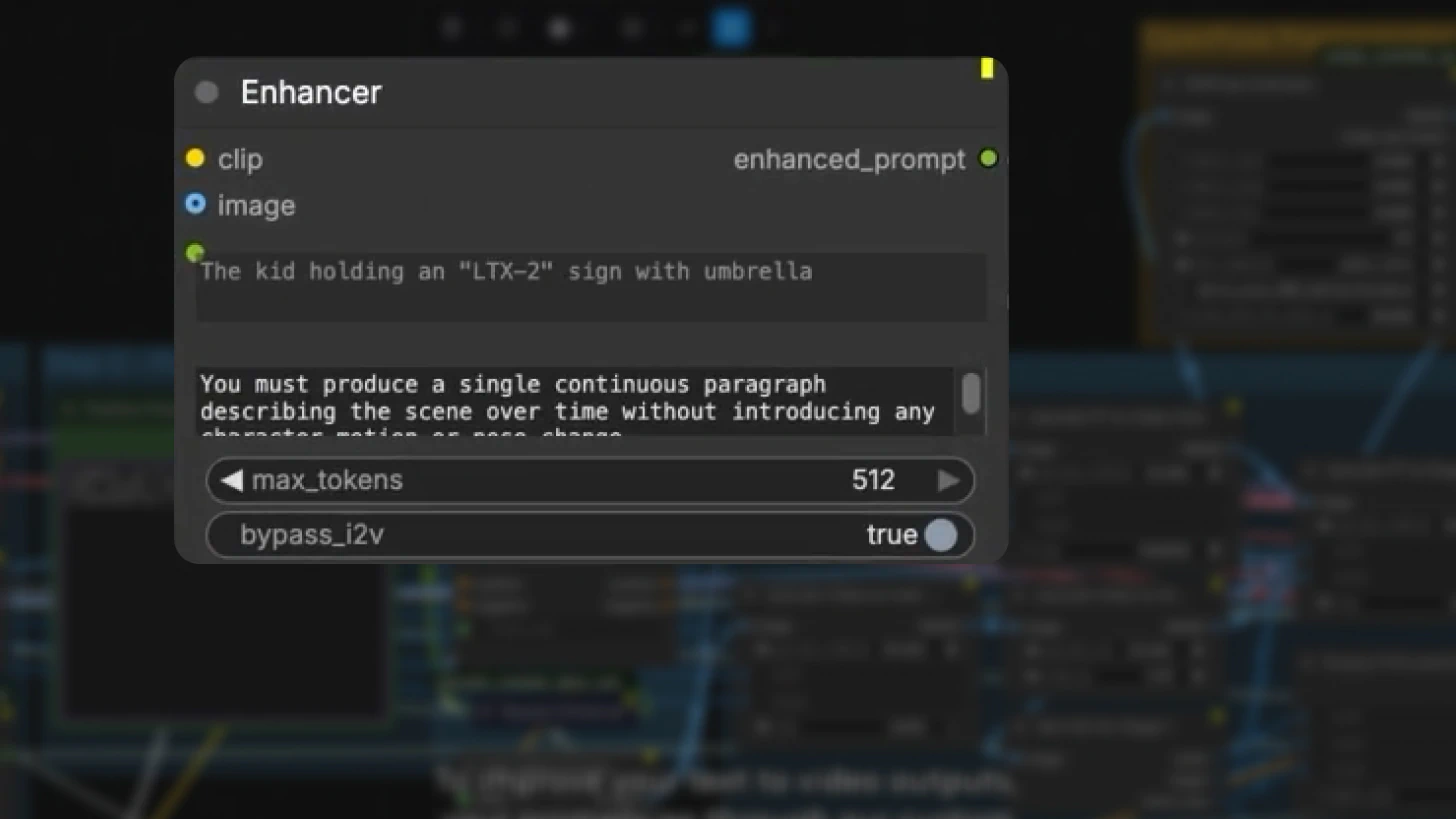
Step 2: Prompt Enhancement
In text-to-video mode, prompts pass through the custom prompt enhancer node, which includes an elaborate system prompt for refinement.
In image-to-video mode, this node is bypassed by default.
Best practice: Take the enhanced prompt and manually adjust it, especially if you want your character to say a specific phrase or need precise control over audio content.
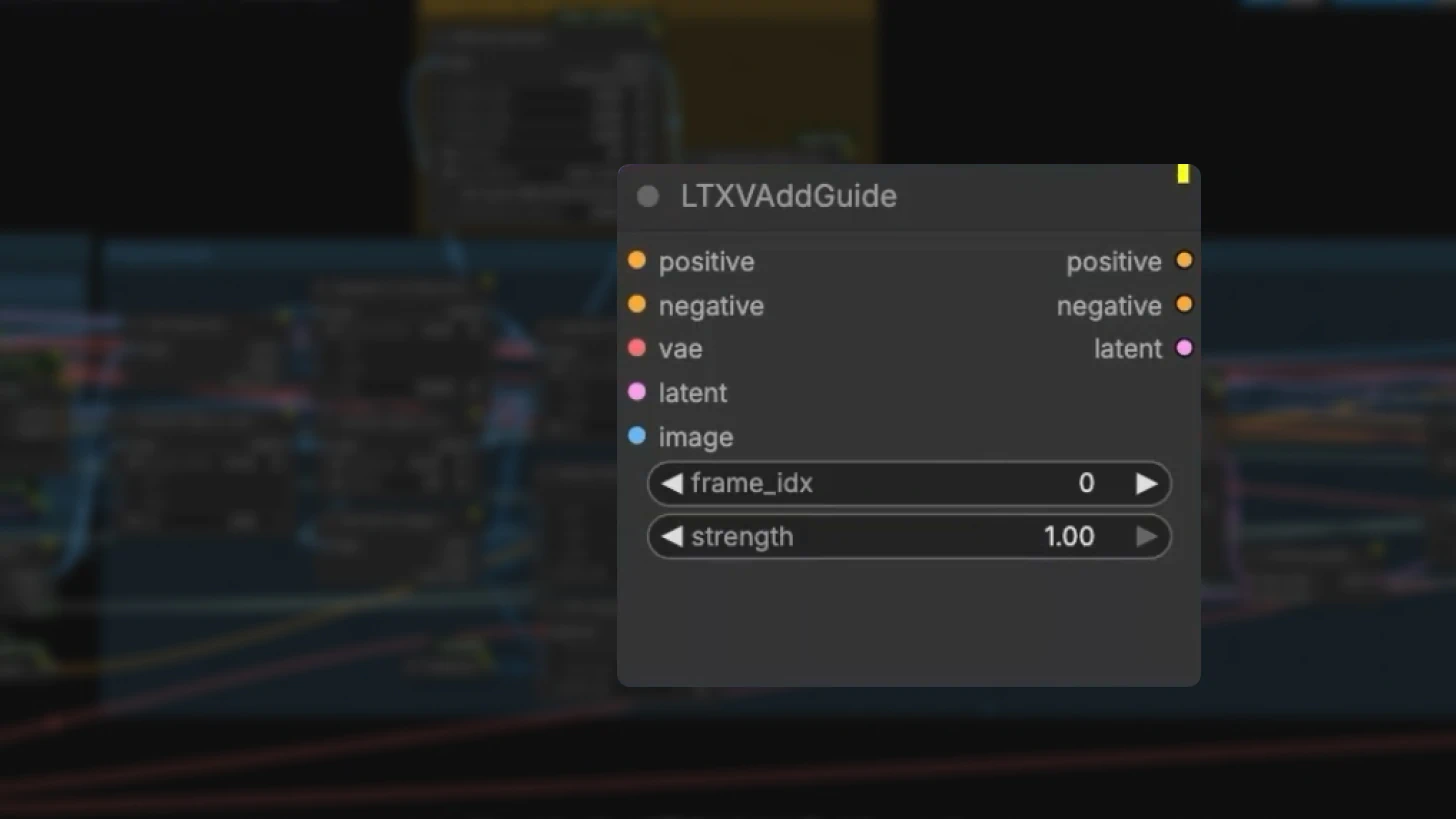
The LTXV Add Guide Node: Control Center
This node is your primary control interface for IC-LoRA behavior.
Key parameters:
Frame index: Set to 0 by default, ensuring guidance starts from the very beginning of the video.
Strength: Set to 1.0 by default (full strength).
Important: Values below 1.0 can cause the reference video to "pop" or bleed through in the output. Generally, you don't want to change this unless debugging specific issues.
Multi-Stage Sampling
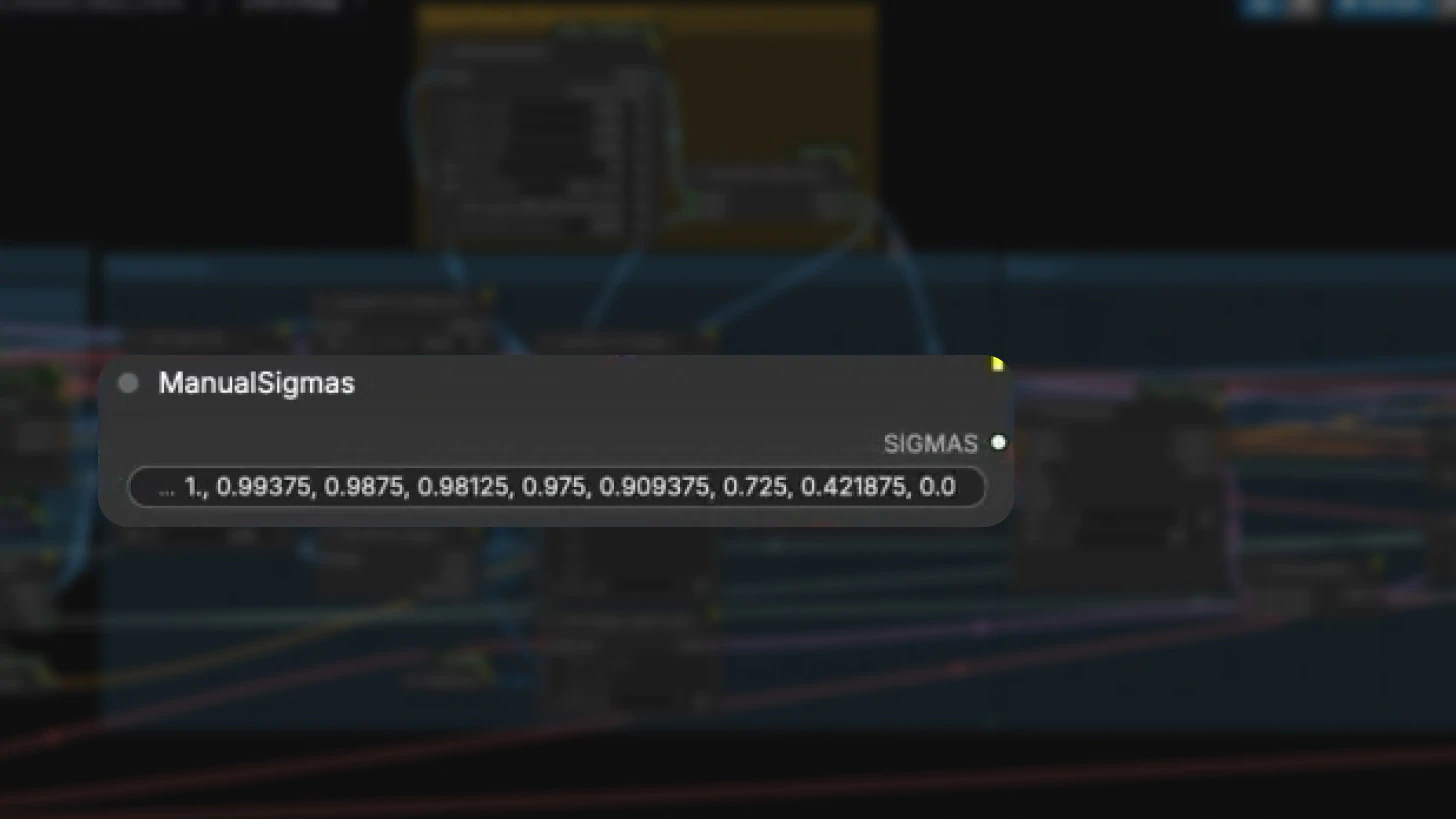
Like the distilled image-to-video workflow, IC-LoRA uses a two-stage sampling process:
Stage 1: Low-Resolution Generation
- Generates at lower resolution first
- Uses Euler ancestral sampler with 8 sigma steps
- Faster iteration and lower VRAM usage
Stage 2: Upscaling
- Upscales to final target resolution
- Refines details while maintaining motion consistency
This multiscale approach balances quality and performance.
Best Practices for IC-LoRA Workflows
Memory Management
Run one IC-LoRA group at a time:
Running multiple IC-LoRA modes simultaneously (e.g., Canny + Depth + Pose) will cause VRAM issues. Choose the mode that best fits your control needs and mute the other two groups.
Image-to-Video Alignment
Generate first frame from reference video
For I2V mode, use ControlNet or another image generation model to create a first frame derived from your reference video's first frame. This prevents:
- Jump cuts at video start
- Visual discontinuities
- Temporal artifacts
Prompt Customization
Manually adjust enhanced prompts:
While the prompt enhancer is helpful, manually refining the output gives you better control - especially for:
- Specific dialogue or audio content
- Precise visual details
- Style consistency
Keep Default Strength Values
The default guidance strength of 1.0 is optimized for most use cases. Only adjust if you're experiencing specific issues with reference video bleed-through.
Understanding the Output
The final result is a video that:
- Completely reimagines the visual style based on your prompt
- Locks in the original motion perfectly from the reference video
- Maintains temporal consistency across frames
Synchronizes audio and video output - This separation of motion and style is what makes IC-LoRA a production-ready control mechanism—you get deterministic motion behavior with creative freedom over aesthetics.
Getting Started with IC-LoRA
Quick Start Checklist:
- Download the IC-LoRA workflow from the LTX Models repository
- Prepare a clean reference video with the motion you want to transfer
- Choose your IC-LoRA mode based on control type needed:
- Canny for composition/edges
- Depth for camera/3D structure
- Pose for human motion
- Load reference assets (video + image)
- Write a style-focused prompt (avoid motion descriptions)
- Set text-to-video mode (true/false) based on your use case
- Generate and iterate
Next Steps:
- Experiment with all three IC-LoRA modes to understand their strengths
- Train custom IC-LoRAs using the LTX video trainer repository
- Build motion reference libraries for repeatable production workflows
- Combine with standard LoRAs for additional style control
Why IC-LoRA Matters for Production Workflows
IC-LoRA represents a fundamental shift in AI video control—moving from unpredictable prompt-based motion to deterministic, reference-driven motion transfer.
Key advantages:
Repeatability: The same reference video produces consistent motion across generations
Temporal coherence: Frame-to-frame consistency improves dramatically
Separation of concerns: Motion and style become independent variables
Production scalability: Build libraries of motion references for systematic reuse
This makes LTX-2 with IC-LoRA suitable for professional workflows where consistency and predictability matter more than creative serendipity.
Conclusion
IC-LoRA unlocks precise motion control in LTX-2 by separating motion from visual styling. Whether you need to preserve edges with Canny, control camera movement with Depth, or transfer human performance with Pose, IC-LoRA gives you deterministic, repeatable results that work in production environments.
The key to success: let the reference video handle motion, and use your prompts purely for visual style. This separation makes AI video generation more predictable, consistent, and production-ready.
Ready to get started? Download the IC-LoRA workflow, choose your control mode, and start experimenting. For advanced users, explore the LTX video trainer to create custom IC-LoRAs tailored to your specific motion control needs.
Related posts