LTX Desktop
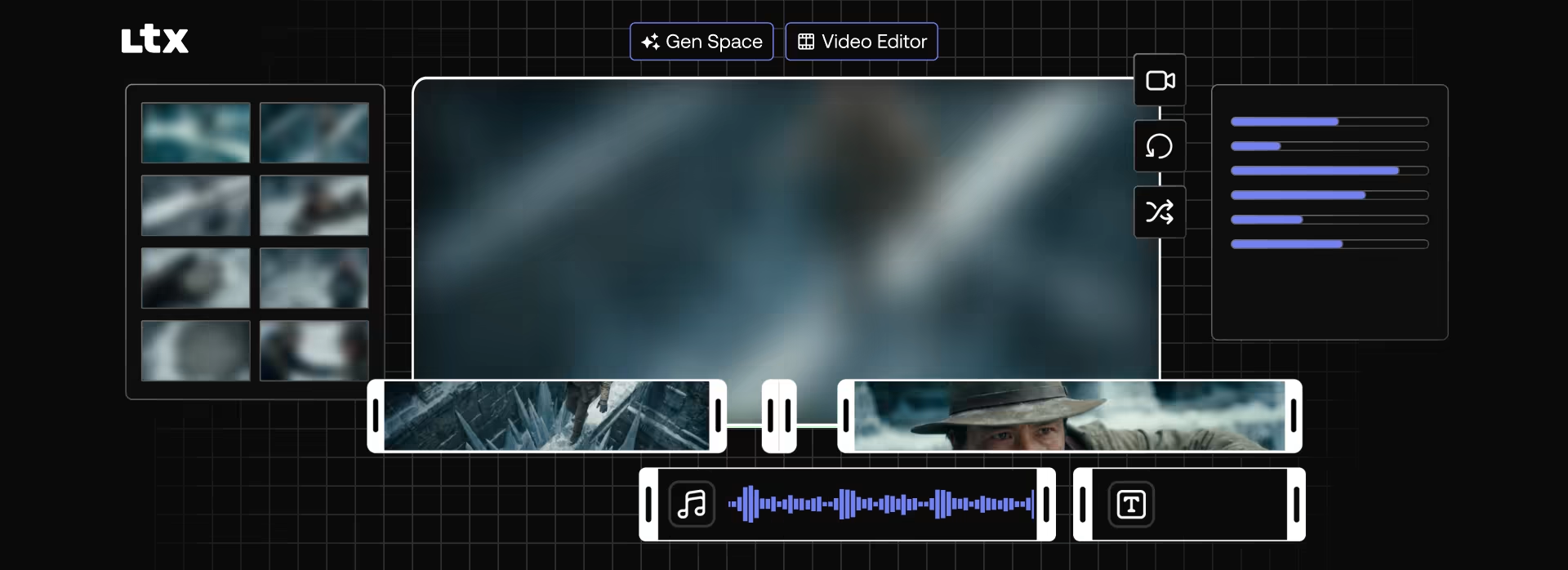
A fully local AI gen space with integrated video editor built entirely on the LTX engine
No cloud
No per-generation fees
No data leaving your device
macOS runs via API only
Run Locally
Generate and edit directly on your own hardware. No cloud dependency, no internet required after setup.
Zero Usage Fees
No per-generation pricing, ever. Pay for your hardware once — not for every render.
Your Data Stays Yours
Footage, prompts, and outputs stay on your machine. No forced data transfers or external egress.
Fully Open source
LTX Desktop is fully open source under Apache 2.0 free for the community to use, fork, and build on.
On-Prem Deployment
Run LTX Desktop within your own infrastructure. Designed for those that value privacy and operational control.
API When You Need It
Supports API access with a seamless toggle inside Desktop. Switch to API mode and integrate it your way.
Powered by LTX-2.3
LTX Desktop is built on the same production-ready multimodal engine, LTX-2.3. Designed to be built on. Sharper detail. Stronger motion. Cleaner audio. Native portrait support. All running locally on your hardware. Learn about LTX-2.3 →
Built to Fit your Infrastructure
Open Source
Fully local. Fully yours.
Run LTX Desktop on your own compute with full access to model weights. No internet required. No cost per generation. Install, modify, and deploy on your own infrastructure.
Free for individuals and companies under $10M in annual revenue.
API
Same editor. Cloud compute.
Run LTX Desktop with API as the backend. Faster generation, no local compute required, and always on the latest model — no manual updates, no model management.
Everything the Desktop experience offers, without needing the hardware to back it.
Licensing
Model Licensing at Scale.
LTX Desktop is fully open source and available to everyone. The LTX-2.3 model is free for companies under $10M in annual revenue. Above that threshold, commercial licensing applies to the model
Installation Guide
Getting Started with LTX Desktop
LTX Desktop runs locally on supported hardware. Below are the system requirements and step-by-step instructions to get started.
System Requirements
Internet connection required for initial setup.
- Windows 10/11 (64-bit)
- NVIDIA GPU (32GB+ VRAM Recommended)
- 160GB free disk space
- Apple Silicon (M1 or later)
- macOS 13+
- 16GB+ unified memory
Step-by-step instructions
Step 1
Download the Installer
Go to the LTX Desktop Releases page and download the latest version:
- Windows: Download the .exe file
- macOS: Download the .dmg file
Step 2
Install the Application
Double-click the .exe file and follow the installation wizard. If Windows SmartScreen appears, click “More info” → “Run anyway.”
Open the .dmg file and drag LTX Desktop into your Applications folder. If macOS shows a security warning, right-click the app → Open, then confirm.
Step 3
Launch LTX Desktop
Open the app from:
- Start Menu (Windows)
- Applications folder (macOS)
Step 4
Accept the License
On first launch, review and accept the LTX-2 Community License Agreement to continue.
First-Run Setup
On first use, two one-time downloads occur:
- Python environment (~10GB)
Installs required AI inference libraries for local GPU generation. - AI models (~150GB)
Downloaded automatically when you generate your first video.
After setup, launches are immediate. Models are stored locally on your machine.
On macOS, generation runs via the LTX API.
- No large model downloads required
- Enter your LTX API key during setup
- No local GPU required for generation
FAQs
What is LTX Desktop?
LTX Desktop is an open-source, AI-powered video production suite currently in beta that runs entirely on your machine. It combines a full non-linear editor with on-device AI generation - including text-to-video, image-to-video, audio-to-video, retake, image generation, and timeline import from professional NLEs. Everything runs locally, powered by the LTX-2.3 engine. No internet connection is required after installation.
Is it free?
Yes, if you have a machine capable of running the LTX-2 model locally, there are zero costs for inference. LTX Desktop is free and open source, licensed under Apache 2.0. The app is our way of showing what's possible with LTX-2.3 and giving the community something to build on.
If you don’t meet the hardware requirements for local inference, or prefer to run inference via Lightricks’ API, you can enable LTX API inference in the Settings panel.
Note: the underlying LTX-2.3 model weights are subject to the LTX-Video Model License,
What can LTX Desktop do?
Gen Space — AI generation
- Text-to-video and image-to-video generation
- Still image generation (via Z-Image Turbo)
- Audio-to-Video
- Retake - regenerate specific portions of an input video
Full non-linear editor
Professional Editing Tools
- Trim tools - slip, slide, roll, and ripple
- Built-in transitions
- Primary color correction tools
AI-Native Editing
- Generate multiple takes per clip directly in the timeline and switch between them non-destructively. Each new version is nested within the clip, keeping your timeline modular.
- Context-aware gap fill - automatically generate content that matches surrounding clips
- Retake - regenerate specific sections of a clip without leaving the timeline
Interoperability
- Import/Export XML timelines for round-trip edits back to other NLEs
- Supports timelines from Premiere Pro, DaVinci Resolve, and Final Cut Pro
Integrated Text & Subtitle Workflow
- Text overlays directly in the timeline
- Built-in subtitle editor
- SRT import and export
High-Quality Export
- Export to H.264 and ProRes
Editor-Friendly Experience
- Fully customizable keyboard shortcuts
- Keyboard preset layouts for Premiere, DaVinci Resolve, and Avid
What are the recommended system requirements to run LTX Desktop locally?
AMD / Intel GPUs: Not currently supported. If this matters to you, add a 👍 to the tracking issue on GitHub.
Does LTX Desktop run on Mac?
Yes. LTX Desktop is supported on Apple Silicon Macs (M1 and later).
Currently, generation on macOS runs via the LTX API rather than locally on the GPU. Support for local GPU inference on macOS is planned for a future release.
How do I get LTX Desktop?
Option 1 — Installer (recommended): Download the latest .exe from GitHub. The app auto-detects your hardware and walks you through downloading model weights on first launch.
For macOS users, download the .dmg file from Github.
Option 2 — Run for development:
Follow instructions in the app README.md file
What models does it download? How much space do I need?
LTX Desktop downloads models from HuggingFace on first launch. The download wizard lets you choose which you need.
To get started with text-to-video at 720p, you only need the checkpoint (~20GB).
Do I need an internet connection to run LTX Desktop?
An internet connection is only needed to download model weights on first launch (from HuggingFace)
After the initial model download, the application can run entirely offline unless you enable optional API features. When running locally, your footage, prompts, and generated content never leave your machine.
What's the Gemini API key for? Do I need it?
The Gemini API key is optional. It’s only required if you want to use the Gemini LLM for the context-aware gap fill feature in the timeline editor.
What's the fal.ai API key for? Do I need it?
The fal.ai API key is optional and intended for users who can’t run Z-Image Turbo locally. If your machine is capable of running the model locally, you don’t need this API key.
Can I get 1080p output?
Yes. By downloading the upsampler model (~2GB) from the model wizard, you can upscale 720p output to 1080p (2× upscaling). You’ll need at least 12GB of VRAM to generate and upscale to 1080p locally.
Note: cloud-based upscaling via the LTX API is not available in this initial release. The local upsampler is the supported path for 1080p output.
Can I build on top of LTX Desktop?
Yes, please do! Fork it, extend it, build your own tool on the same engine. This release demonstrates what’s possible with LTX-2.3. It’s a foundation for you to build on.
Submit and upvote feature ideas in GitHub Discussions → Ideas. The roadmap is community-driven.
I found a bug. Where do I report it?
File a GitHub issue at github.com/Lightricks/ltx-desktop/issues.
Before filing, open Help → View Logs in the app and download the log file — it includes your GPU, OS, and error details. Attaching it will help diagnose the problem much faster.
Where can I get help or connect with other users?
Join the #ltx-desktop channel on Discord. It's the main place for setup help, usage questions, and sharing what you've built. For deeper discussions and feature ideas, head to GitHub Discussions.
What model powers LTX Desktop?
LTX Desktop runs on LTX-2.3, a 20.9B parameter multimodal model from Lightricks. Learn more on HuggingFace or read the technical paper.
For more technical information, please review the README file.
