

- Runs locally on consumer GPUs with efficient VRAM usage
- Uses multiscale rendering: generates low-res previews first, then upscales to final quality
- Two workflow options: distilled (fast iteration) and full model (maximum quality)
- Generates synchronized audio and video in a single output file
- Customizable with LoRAs for camera control and style consistency
- Quality depends heavily on detailed, structured prompts—see the LTX-2 Prompting Guide
LTX-2 is an open-source AI model for image-to-video (I2V) and text-to-video (T2V) generation that runs locally on your machine. Built for production workflows, it generates synchronized video and audio with fast iteration times, modular control, and efficient VRAM usage.
This tutorial walks you through the official ComfyUI LTX-2 workflows, explains the multiscale rendering architecture, and shares optimization techniques for high-quality results.
Understanding LTX-2 Workflows
LTX-2 supports two generation modes:
Image-to-Video (I2V): Animates a static image with motion, camera movement, and synchronized audio (dialogue, music, sound effects).
Text-to-Video (T2V): Generates complete videos from text prompts alone—no input image required.
Both workflows share the same pipeline structure:
- Load model components
- Configure video parameters (resolution, frame count, frame rate)
- Write and optionally enhance your prompt
- Generate low-resolution base video
- Upscale to final output resolution
This unified architecture makes switching between I2V and T2V straightforward depending on your use case.
Image-to-Video Workflow (Distilled Model)
The distilled I2V workflow is optimized for speed and lower VRAM consumption—ideal for rapid iteration and local development.
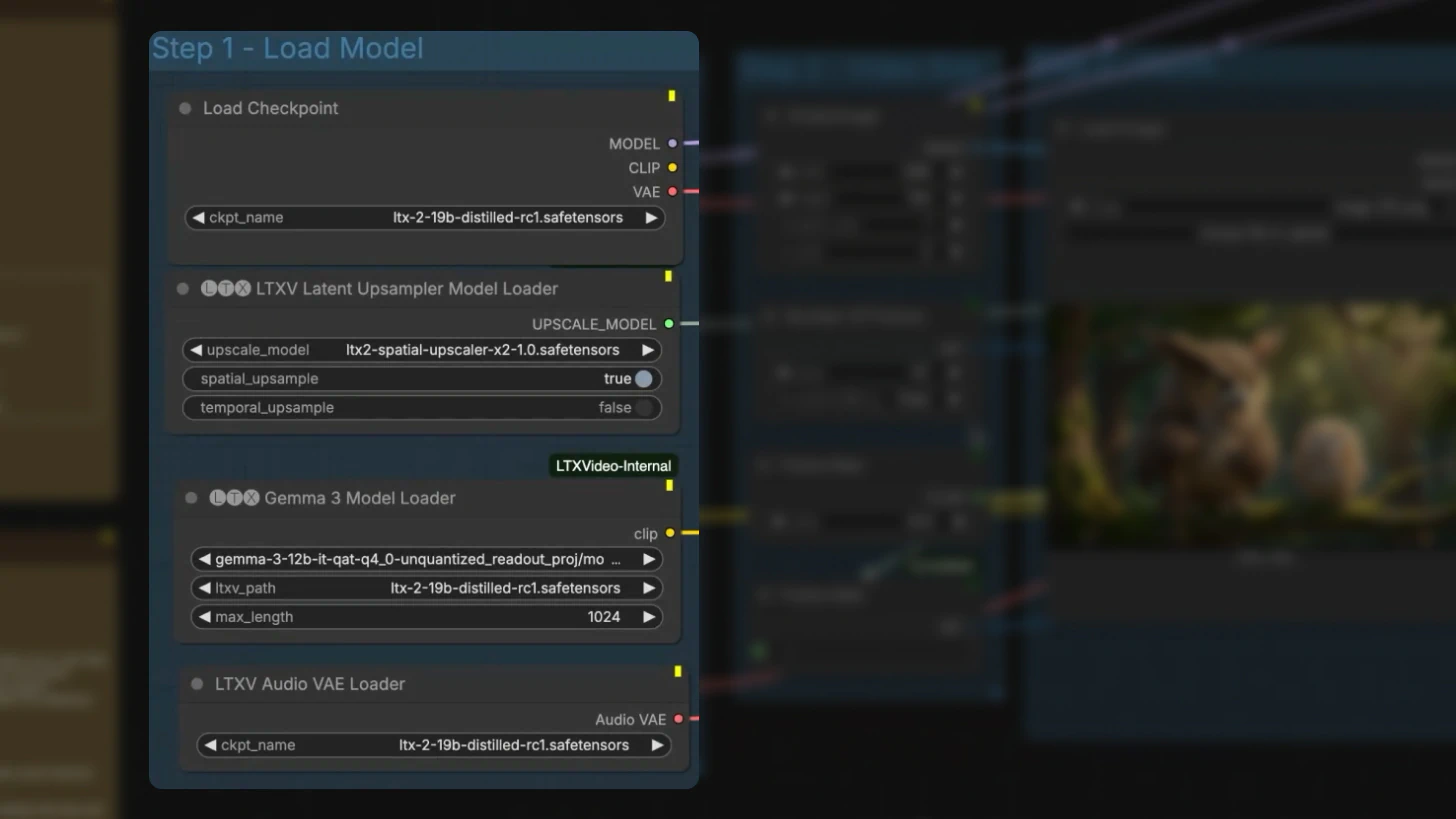
Step 1: Load Model Components
In ComfyUI, load these components:
- LTX-2 distilled checkpoint – Core video generation model
- LTX video upscaling model – Handles 2× resolution upscaling
- Gemma CLIP text encoder – Processes text prompts
- VAE – Decodes both video and audio latents
This modular setup allows you to balance performance and quality based on your hardware.
Step 2: Configure Video Parameters
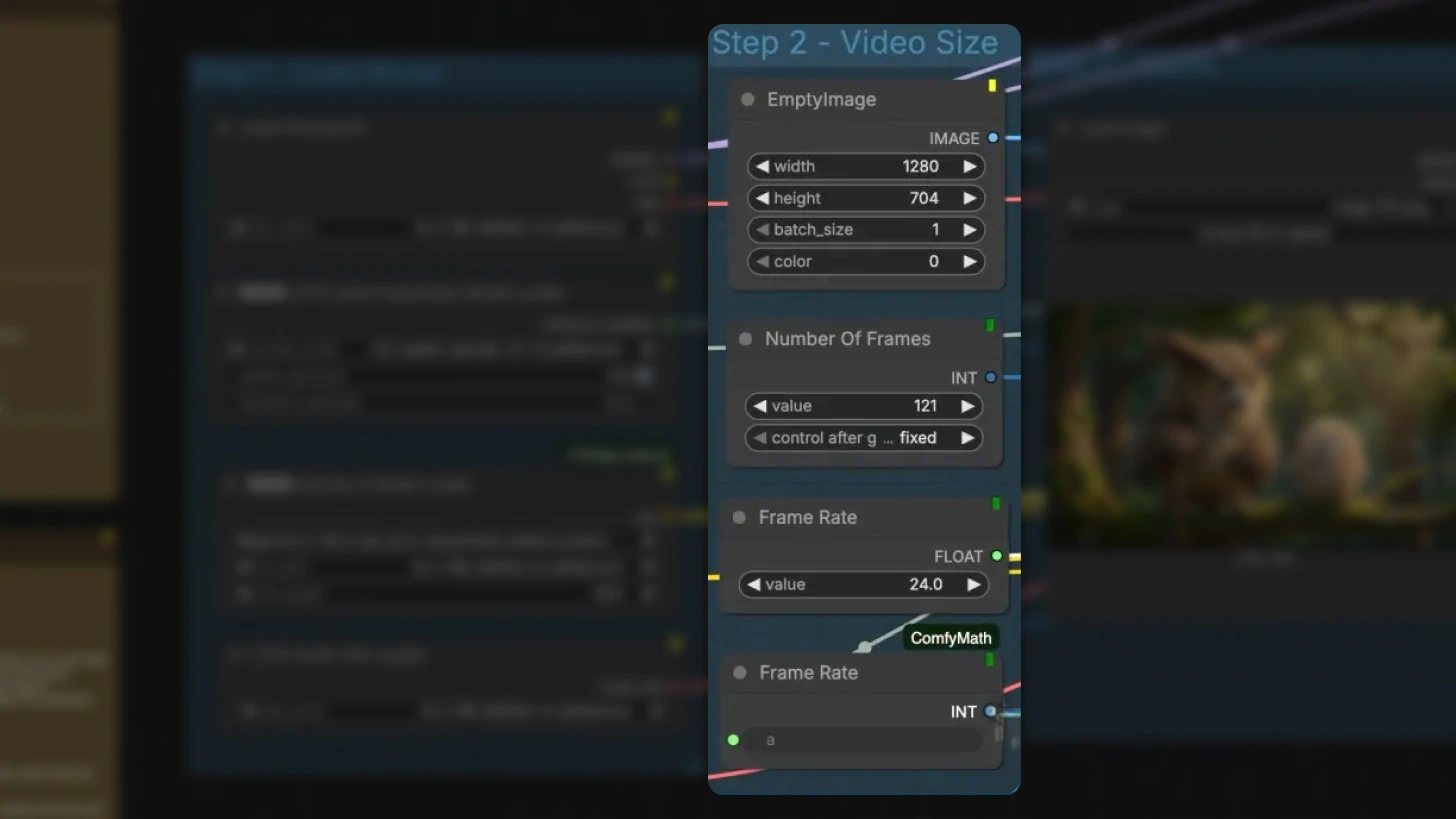
Define your output specifications:
Frame count: Example: 121 frames ≈ 5 seconds of video
Resolution: The tutorial uses ~720p
Important: Width and height must be divisible by 32
Frame rate: Must match the frame rate setting in your Create Video node
Tip: For dynamic motion, try 48–60 FPS for noticeably smoother results
Step 3: Write Effective Prompts
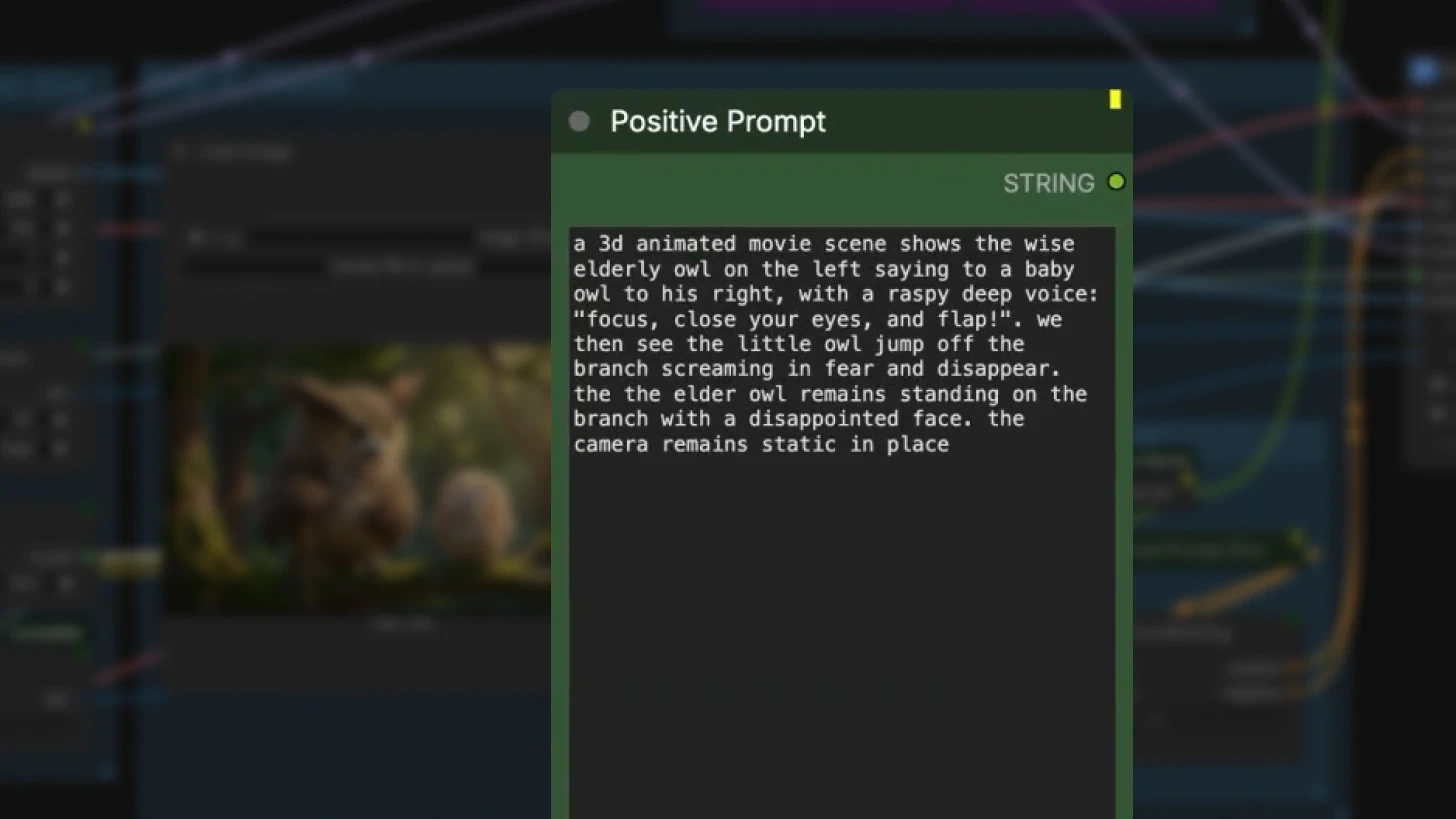
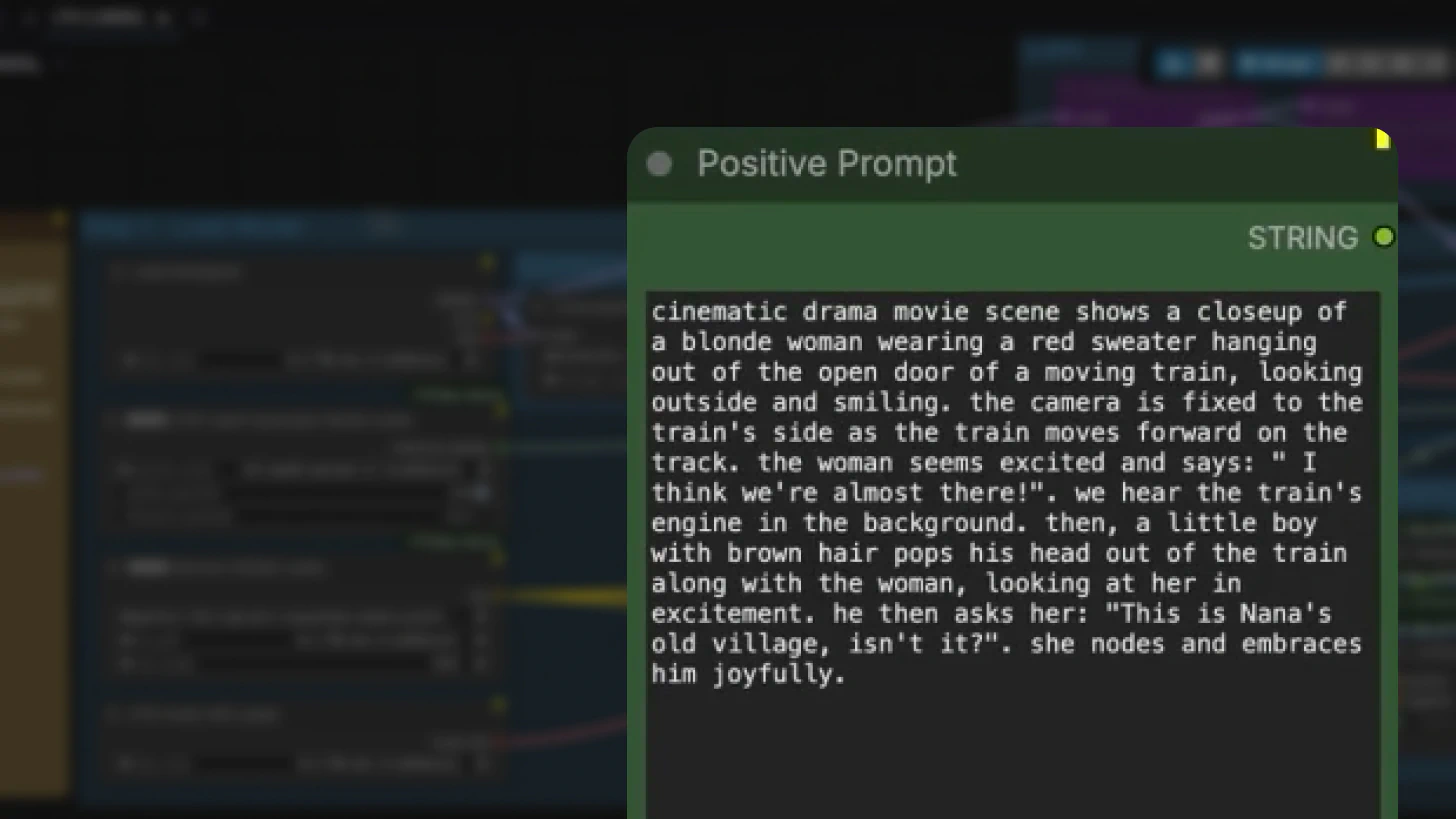
Prompting quality directly impacts output quality. LTX-2 works best with detailed, structured prompts that specify:
- Visual style and aesthetic
- Character appearance and actions
- Camera motion (pan, zoom, tracking, etc.)
- Dialogue or voiceover content
- Background music and sound effects
For detailed prompting strategies and examples, see the LTX-2 Prompting Guide.
Prompt Enhancement:
By default, prompts pass through the Prompt Enhancer node, which refines your input using a system prompt. Changing the enhancer's seed generates completely different variations.
For full creative control, bypass the enhancer and write raw prompts directly.
How Multiscale Rendering Works
LTX-2 uses a multiscale rendering architecture that functions as a built-in upscaling workflow. Instead of rendering at full resolution immediately, it:
- Generates a low-resolution base video
- Upscales progressively to reach target resolution
Example: For a 1080p output, LTX-2 first renders at 960×540, then upscales 2× to full resolution.
Why This Matters for Developers:
- Faster iteration – Preview motion and composition quickly
- Lower VRAM usage – Run on consumer GPUs without cloud infrastructure
- Easier experimentation – Test multiple variations without long render times
VRAM-Friendly Development Tip
As long as you keep the random seed fixed:
- Generate and save the low-resolution preview
- Evaluate motion, pacing, and audio synchronization
- Skip upscaling until you're satisfied with the result
This approach is essential for working with LTX-2 on machines with limited VRAM.
Audio-Video Generation Pipeline
LTX-2 handles audio and video through a split-merge process:
- Video and audio latents are generated independently
- An audio-video concat node merges them into a unified latent
- The combined latent is sampled
- Audio and video are split and decoded separately using tile decoding
Tile decoding significantly reduces VRAM consumption during final rendering while maintaining quality.
The output is a single video file with perfectly synchronized audio and video tracks.
Customizing with LoRAs
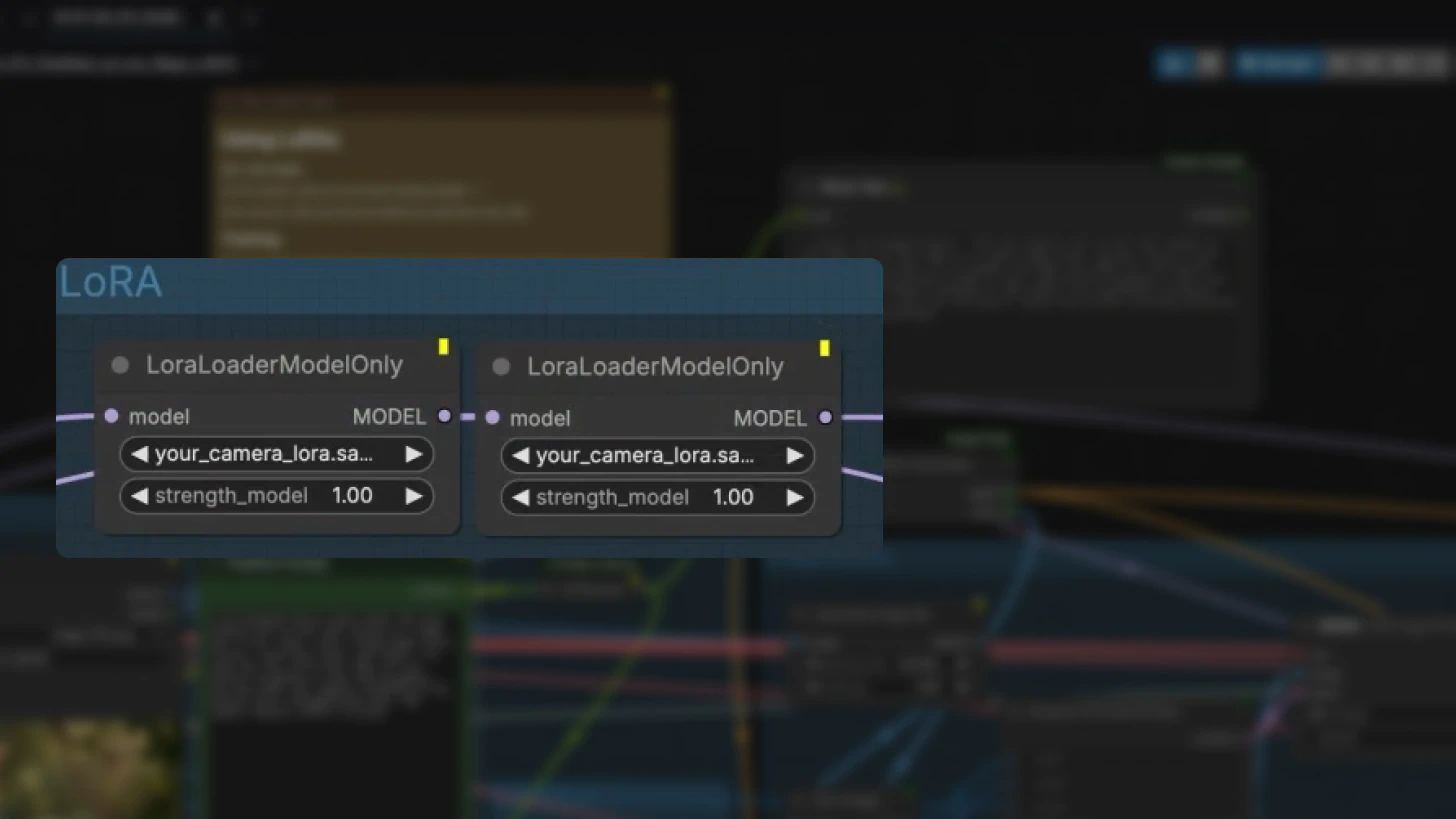
LoRAs let you modify LTX-2 behavior without retraining the base model. Enable LoRA loader nodes in ComfyUI to add:
- Camera motion control (pan, tilt, dolly, etc.)
- Stylistic consistency
- Specialized generation behaviors
Camera LoRA Usage:
When using camera LoRAs, explicitly describe the intended camera movement in your prompt (e.g., "slow dolly zoom into subject's face").
Training Custom LoRAs:
The LTX video trainer repository is available on GitHub. A dedicated training tutorial is planned for future release.
Full Model vs Distilled Workflow
LTX-2 offers a full model workflow designed for maximum fidelity and stronger prompt adherence.
Key Differences:
| Feature | Distilled | Full Model |
|---|---|---|
| Checkpoint | Distilled checkpoint | Full LTX-2 checkpoint with different VAE |
| Upscaling | Standard upscaling | Adds distilled LoRA at second stage with strength of 0.6 |
| First-stage steps | 8 steps | 20 steps (supports 15 to 40) |
| CFG sweet spot | 1 | Approximately 4 (higher improves adherence but may add artifacts) |
| Default sampler | res 2S | res 2S |
| Use case | Fast iteration and experimentation | Final production renders with maximum quality |
Recommended Workflow:
- Iterate with the distilled model – Fast feedback loops
- Render finals with the full model – Maximum quality and prompt accuracy
CFG Configuration:
- Higher values improve prompt adherence
- Values too high can introduce unwanted textures or artifacts
- Start at ~4 and adjust based on results
Text-to-Video Workflow
The T2V workflow follows the same pipeline as I2V but without an input image.
Setup Steps
- Load model components (same as I2V)
- Configure resolution and frame count
- Write a detailed text prompt
- Generate base video at low resolution
- Upscale and refine to final output
Critical Difference:
Without a visual reference image, prompt detail becomes even more important. Longer, more descriptive prompts consistently produce better T2V results. For comprehensive prompting techniques tailored to LTX-2, refer to the LTX-2 Prompting Guide.
Best Practices
General optimization:
- Write long, descriptive prompts – More detail = better results (see the prompting guide for examples)
- Match frame rates across all nodes to avoid sync issues
- Preview at low resolution first – Save time and VRAM
- Keep CFG around 4 – Balance adherence and artifact control
Development Workflow:
- Use distilled workflows for iteration and experimentation
- Switch to full model for final production renders
- Fix random seeds when comparing variations
- Test camera LoRAs with explicit motion descriptions in prompts
Getting Started
LTX-2 combines open weights, local execution, synchronized audio-video generation, and modular ComfyUI integration—making it one of the most practical open-source AI video systems for developers.
Next Steps:
- Download model weights from the LTX Models repository
- Import the official ComfyUI workflow
- Experiment with the distilled model for fast iteration
- Explore LoRA training to customize behavior for your use case
Whether you're building prototypes, production pipelines, or experimental tools, LTX-2 gives you the flexibility and control to push AI video generation forward.
Related posts