
Visualizing ideas clearly, effectively, and accurately is a fundamental part of every creative’s mission. When you do it well, it’s a game-changer; if you don’t, you will feel the impact. In fact, effectively communicating ideas visually can make or break a project’s success.
This is where LTX Studio’s AI Image Generator comes in—a tool designed to generate high-quality images in seconds, saving you time and effort while enhancing collaboration and creativity. Instead of spending hours refining a concept illustration manually, you can quickly generate images that match your creative vision, enabling seamless collaboration, iteration, and execution.
If it sounds too good to be true, keep reading to discover how LTX Studio’s AI Image Generator can transform your workflow!
Why Visualizing Ideas is Crucial for Creators
Whether you’re an independent filmmaker, an advertising professional, or part of a marketing team, you’ve likely experienced the frustration of an idea lost in translation. Without clear visuals, creative collaboration can feel like an uphill battle. Here’s why visualization is so important:
Fosters Team Collaboration
In a team environment, visual references are paramount to ensure alignment across stakeholders, clients, and collaborators. A concept illustration can quickly convey ideas while reducing the risk of misunderstandings. This speeds up the approval process, while getting the team on the same page.
Simplifies Concept Development and Accelerates Creativity
If you’re working solo, visualizing ideas allows you to quickly and efficiently test your ideas and learn from the AI-generated output. LTX Studio’s AI Image Generator allows you to explore different creative paths, validate your creative vision, and make adjustments without spending hours on costly traditional methods.
Save on Costs with Intuitive In-House Tools
For advertising teams, filmmakers, and marketers trying to deliver professional results on tight deadlines, the AI Image Generator provides almost instantaneous, high-quality results. From product launches to mood boards, the AI Image Generator is your creative co-pilot.
The Power of Visual Communication
Working in a creative field is incredibly rewarding – you have the opportunity to transform ideas into real results, sitting at the intersection of imagination and execution. But when so much of your process involves working in abstraction, it’s essential to use tools that bring much needed clarity to your vision. If you want to nail the illustration of your ideas, you need opportunities to align visuals with your creative intent.
The AI Image Generator is your tool for seamless visual communication, empowering you to communicate ideas effectively through the power of tangible examples.
Transforming Concepts into Reality
LTX Studio’s AI-powered tools deliver intuitive, professional-grade results, enabling users to bring their ideas to life with efficiency and precision. These tools give you the power to iterate instantly, refine your concepts, and maintain creative momentum without the delays of traditional methods. Don’t know exactly what you’re looking for? Use LTX Studio’s AI Image Generator as a tool for brainstorming! Experiment with different words and methods to see how it affects your results!
Speed Meets High Quality AI Images
Gone are the days of spending hours on sketches and mockups just to convey a brainstormed idea. With the AI Image Generator, you can transition from idea to execution in seconds. This combination of speed and precision is the secret sauce that makes LTX Studio an essential tool for all kinds of creative professionals.
How To Master Image Generation: From Concept to Final Image
To better understand the intricacies of AI-powered iteration, let’s break down how you can use LTX Studio’s AI Image Generator to design a garden illustration, while also applying best practices to get the most out of the platform.
1. Start with an Idea
Use your initial prompt to explore creative possibilities! For example, if you’re designing a garden illustration, you might start with:
“A colorful garden in the French countryside with wildflowers and sprawling plants.”
LTX Studio generates multiple different images based on this description, providing a starting point for refinement. If you’re satisfied, pick your favorite and download it instantly! If you’re looking for something a little different, keep reading to learn how to refine your results!

2. Iterate and Refine
If the first round of images isn’t quite right, no problem! This is where iteration comes in:
- Try fine-tuning your input: Maybe the colors aren’t vibrant enough, or you’re seeing roots instead of leaves. Adjust your prompt in the text box to be more specific!
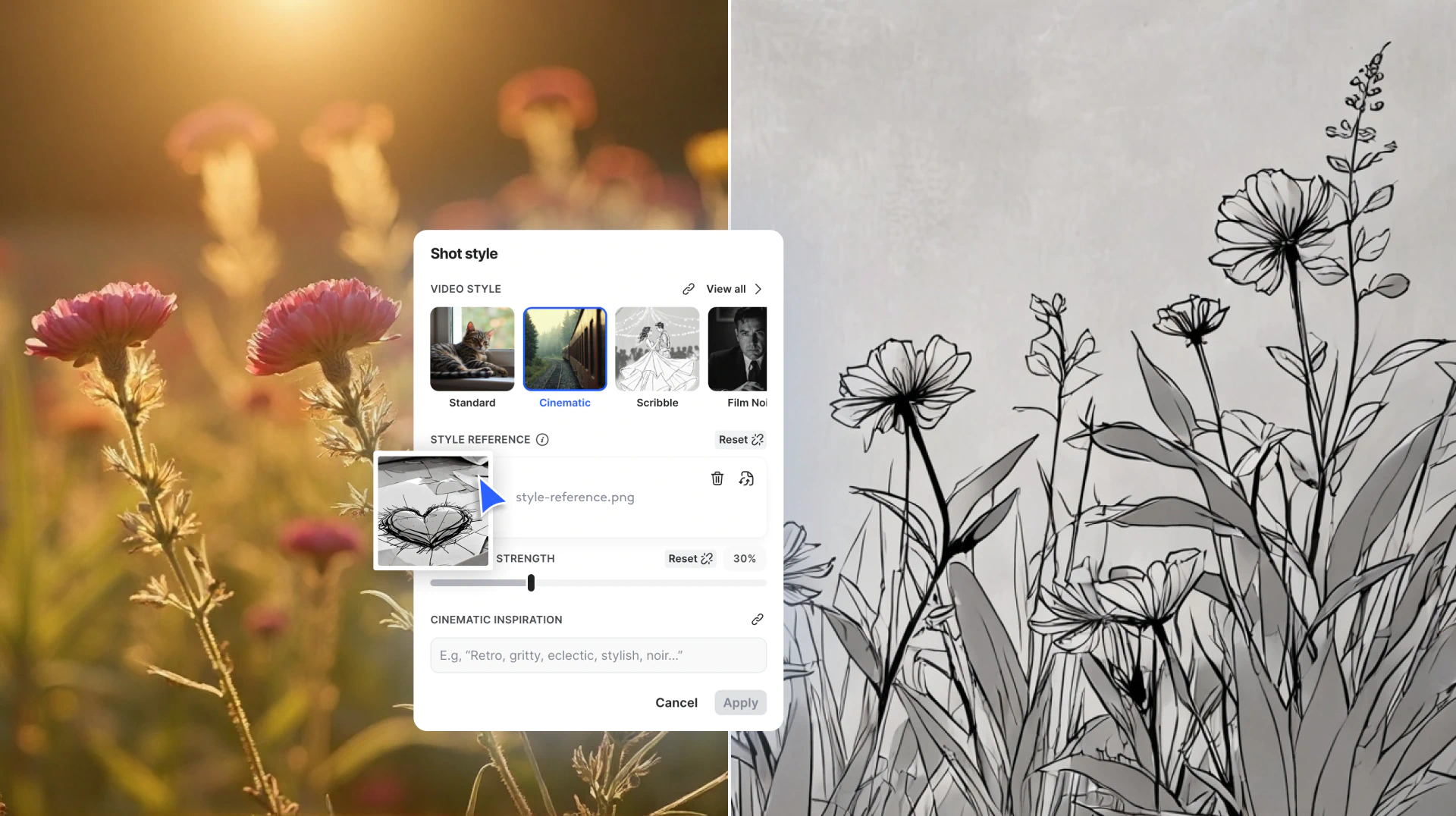
- Experiment with presets and styles: Under the prompt box, click the Style button to select from LTX Studio’s presets. You can also upload a reference image to more closely guide your output. Adjust the Reference Strength slider to control how closely the AI follows your chosen reference image.
- Incorporate cinematic inspiration: If you’re uploading a reference image, think about how film aesthetics influence your vision. Are you imagining something with indie film grain, a nostalgic 70s look, or bold, primary colors? Test different ideas to see how they change your results.
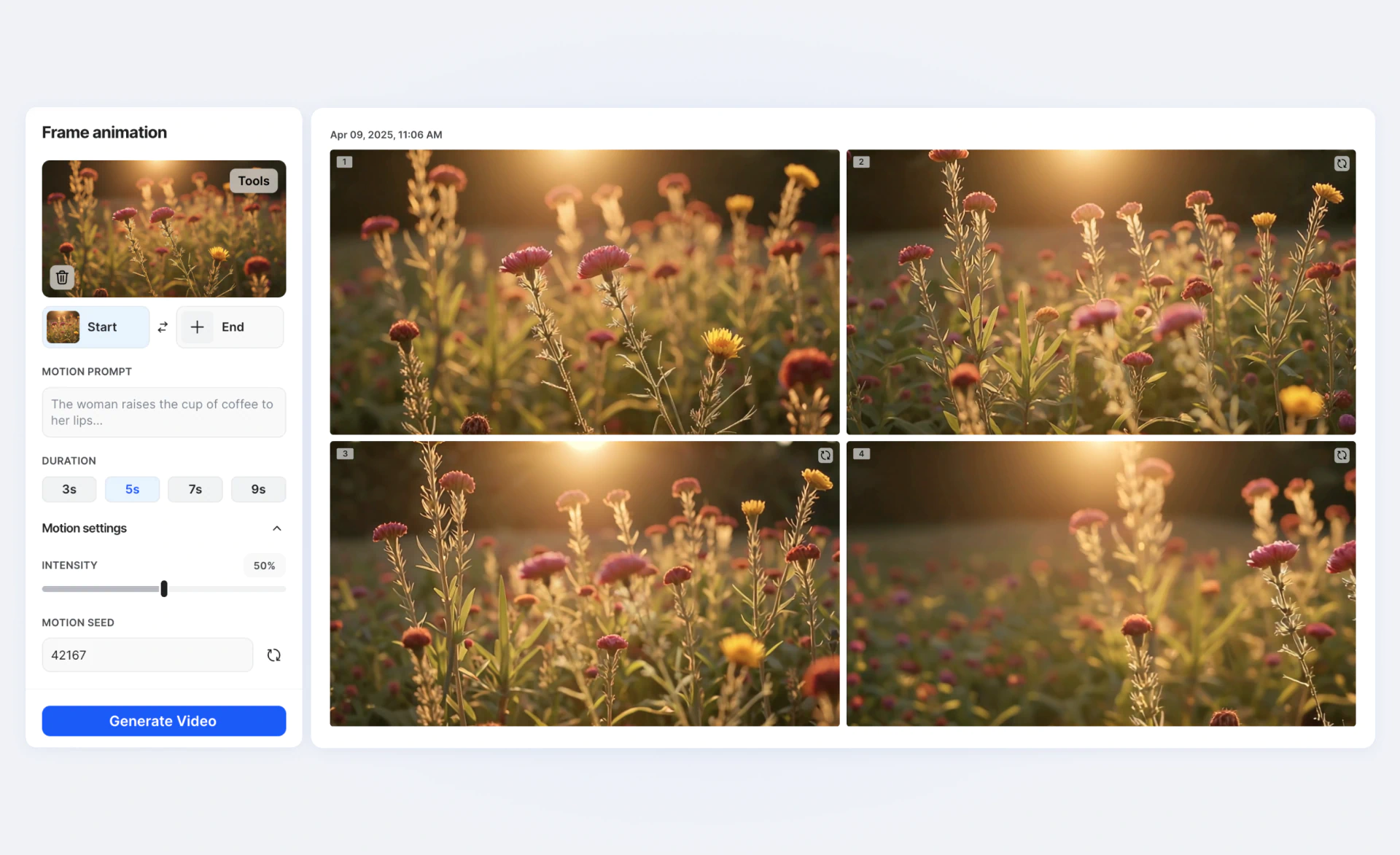
3. Click Generate and Export Your Favorites
On the right-hand side, LTX Studio populates the starting point of your iterations, allowing you to visualize your journey and reference previous images. Browse your variations and download your favorite!
Communicate Your Ideas with the Perfect Images
AI is revolutionizing the way creators develop and refine ideas, transforming everything from illustrations of ideas to full-scale creative projects. Eliminating the long hours typically spent developing concept illustrations, LTX Studio empowers you to focus your time and energy on refining and altering ideas to best fit your creative vision.
LTX Studio’s AI Image Generator helps creators streamline workflows while unlocking new creative potential. Bring your ideas to life faster than ever using LTX Studio’s new AI Image Generator!
Related posts

Visualizing Concepts FAQs
Why is visualizing ideas important for creative professionals?
Visualizing ideas fosters team collaboration by ensuring alignment across stakeholders and reducing misunderstandings, simplifies concept development by allowing quick testing and validation of creative visions, and saves costs by providing instantaneous high-quality results for product launches, mood boards, and campaigns without expensive traditional methods.
How do you use LTX Studio's AI Image Generator effectively?
Start with an initial prompt describing your concept, iterate and refine by fine-tuning your input text for more specificity, experiment with style presets and reference images under the prompt box, adjust the Reference Strength slider to control how closely AI follows references, and browse variations on the right-hand side to download your favorites.
What makes LTX Studio's AI Image Generator different from other tools?
LTX Studio's AI Image Generator combines speed with high-quality results, transitioning from idea to execution in seconds instead of hours. It empowers creators to experiment with different approaches, maintain creative momentum without delays, and focus time on refining ideas rather than developing initial concept illustrations through traditional manual methods.