
Brand Kit is a new Enterprise-only feature in LTX Studio designed to support organizations working with multiple brands, teams, and large volumes of visual content.
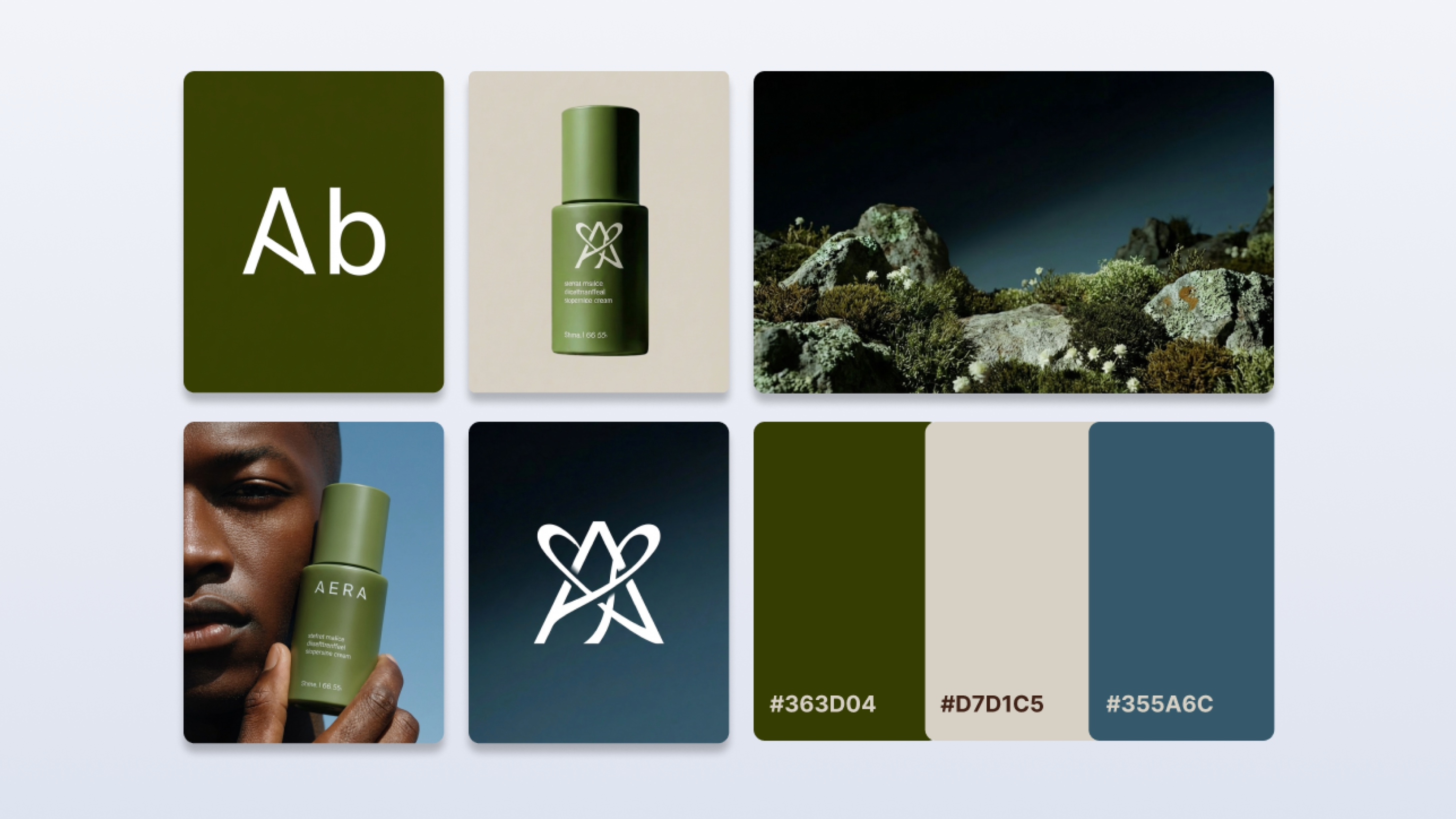
It allows companies to define a shared set of brand Elements, such as logos, typography, characters, products, and styles, and make them available across teams in a controlled, structured way.
What is a Brand Kit?
A Brand Kit is a centralized collection of brand Elements that can be created, managed, and shared within an organization.
Each Brand Kit represents a specific brand, sub-brand, or project, and contains all the visual components teams need in order to create consistent outputs without redefining assets for every project.
A Brand Kit is managed through permissions and governance, so only the Admin can edit and modify the elements within it, ensuring brand consistency, controlled changes, and the use of approved assets only.
Why Brand Kit Exists
As teams grow and content production scales, brand assets tend to become fragmented. Logos exist in multiple versions, styles drift over time, and guidelines live in documents that are rarely consulted during production.
Brand Kit is built to address this gap by embedding brand assets directly into the creation workflow, making them searchable, reusable, and consistently applied across teams and projects.
Who Uses Brand Kit?
Brand Kit is designed for organizations with diverse creative teams and workflows, including:
- Organizations operating multiple sub-brands or divisions
- In-house creative and brand teams
- Advertising agencies working with multiple clients
- Enterprise companies managing multiple projects under a global brand
Roles and Permissions
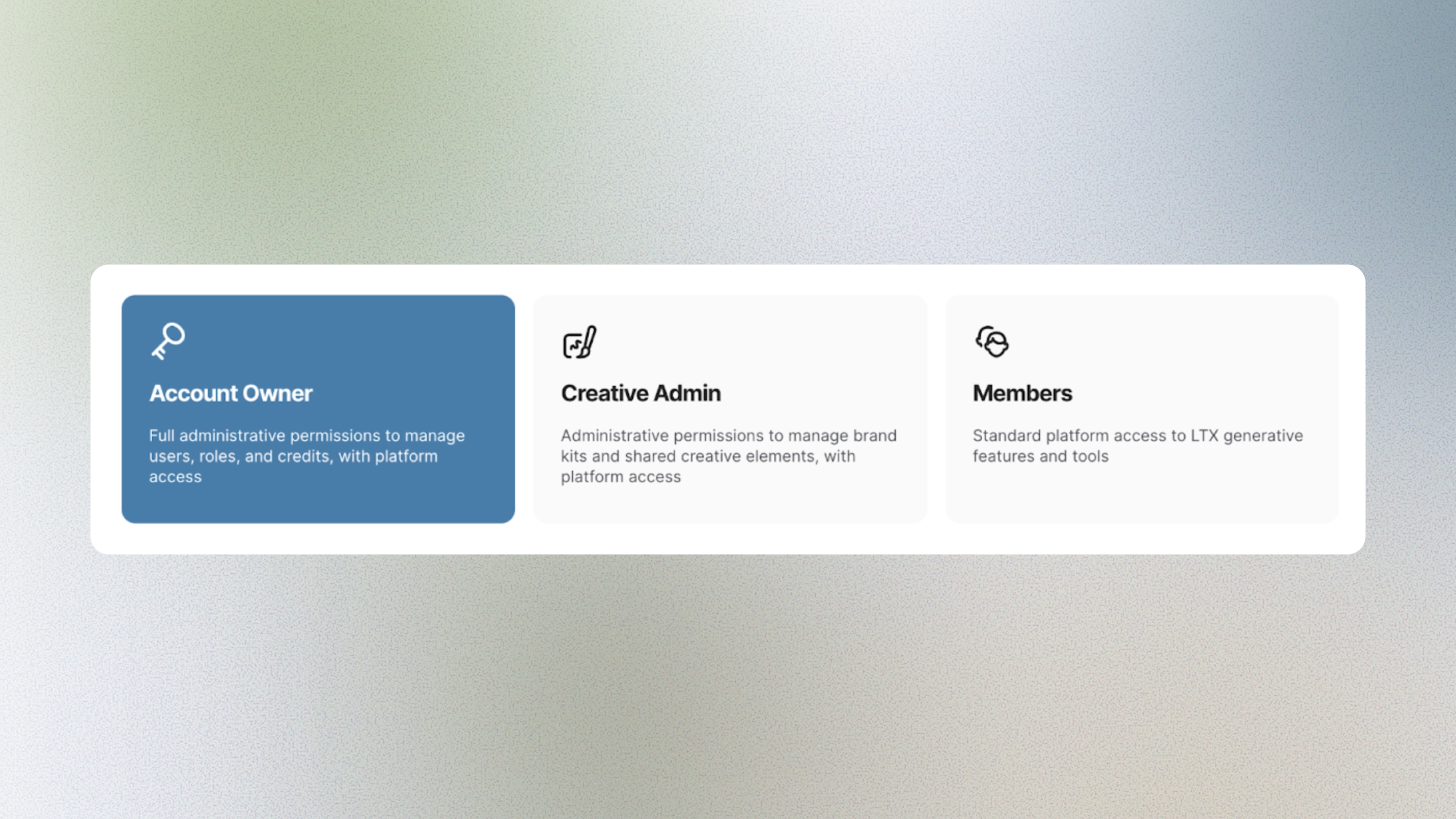
Brand Kit introduces three primary roles, each with a distinct workflow.
Account Owner
The account owner has access to the organization management pages and all brand kits. This role is responsible for defining access levels, including assigning who can be a Creative Admin and who can be a Member.
Creative Admin
The Creative Admin is responsible for creating and managing Brand Kits.
Only the Creative Admin can:
- Create Brand Kits
- Add or edit brand Elements
- Publish or unpublish Brand Kits
- Control which assets are shared with teams
Members
Members can use Brand Kits that have been shared with them. They cannot modify assets, but they can import Brand Kits into their projects and use the Elements during generation.
Creating a Brand Kit (Creative Admin Flow)
Step 1: Access Brand Kits
- Sign in using SSO
- In the left sidebar, select Brand Kits
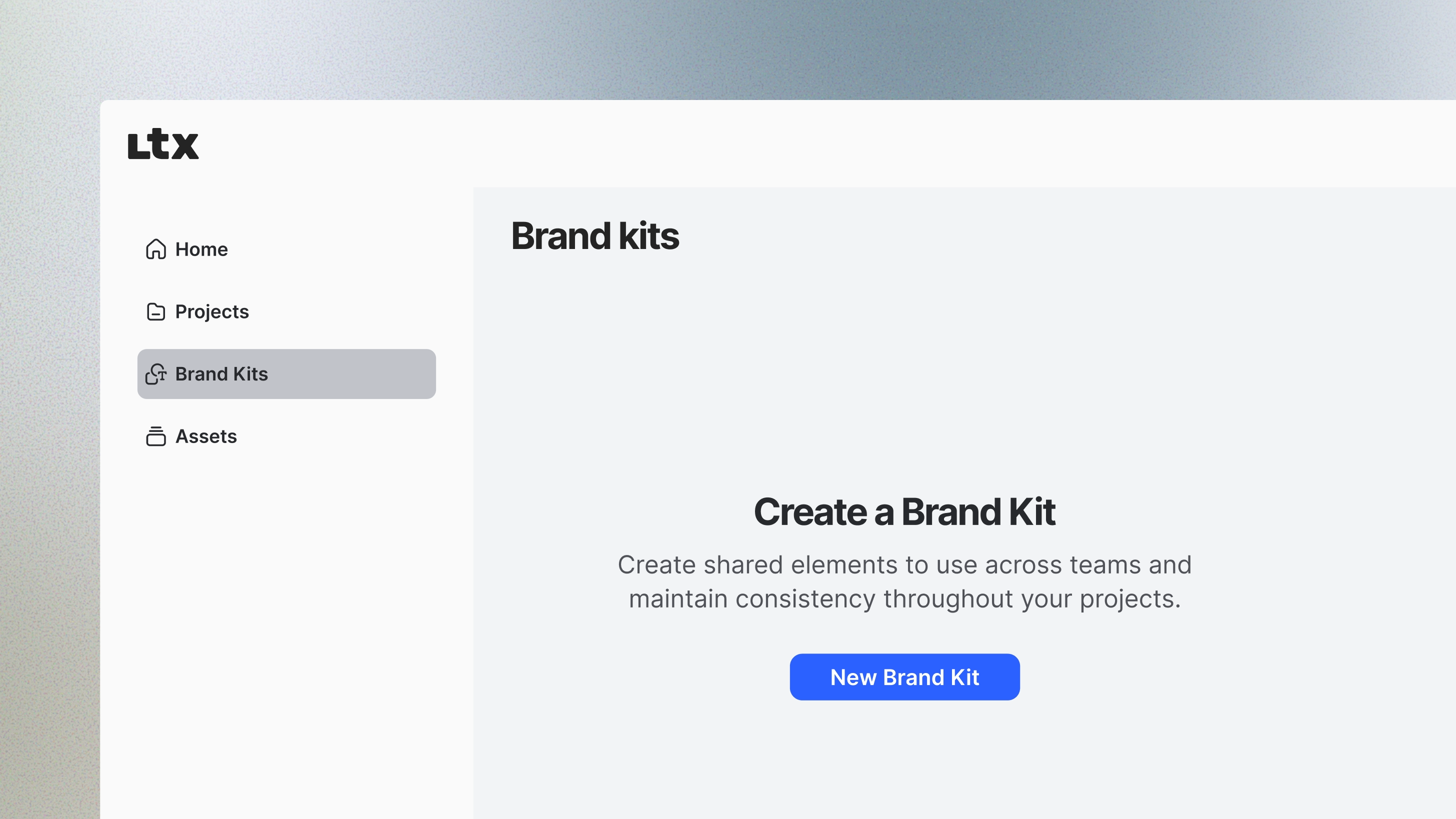
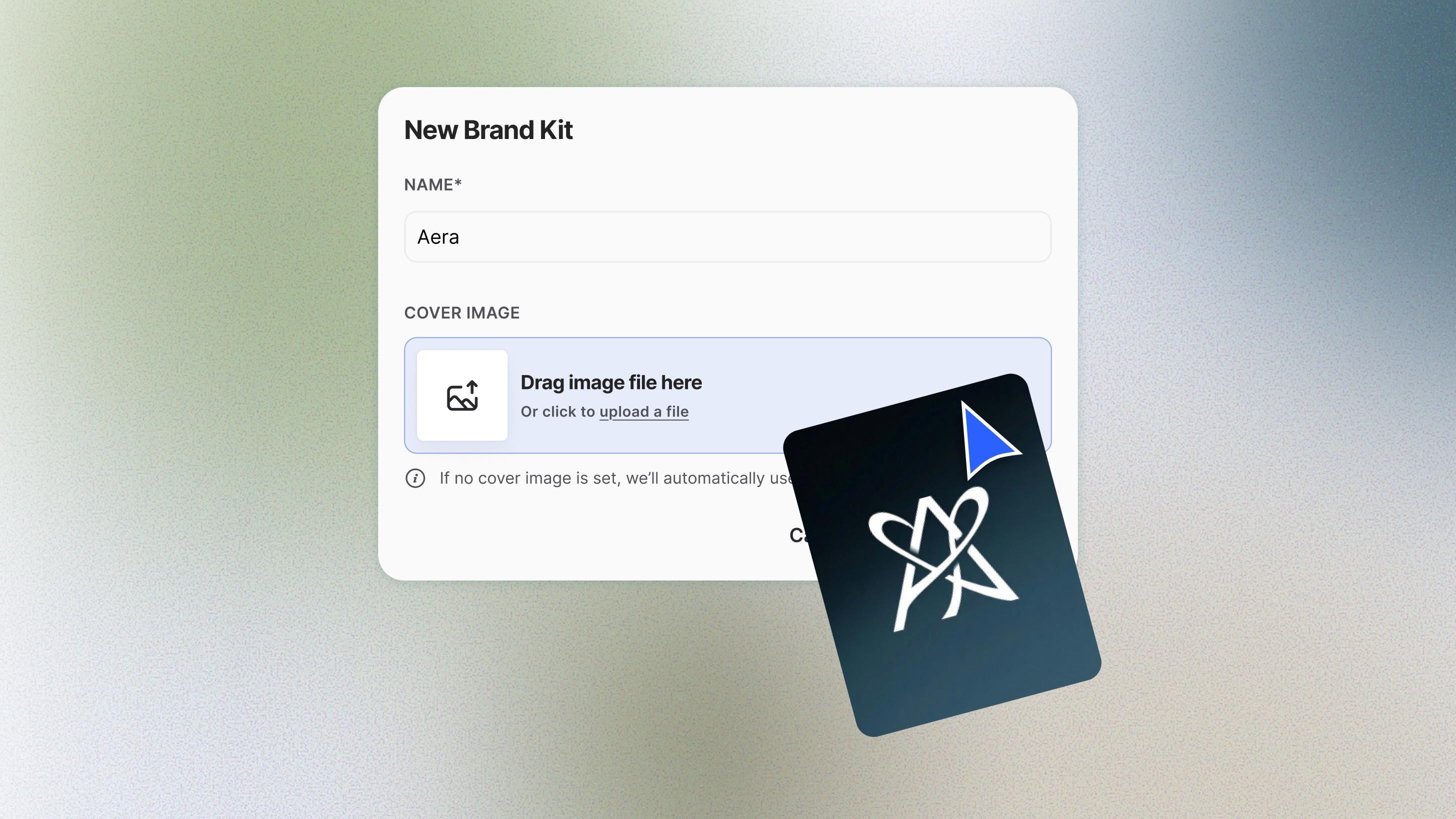
Step 2: Create a New Brand Kit
- Click New Brand Kit
- Enter a name for the Brand Kit
- Choose a cover image
This Brand Kit will serve as the container for all brand Elements related to a specific brand or project.
Step 3: Add Brand Elements
Click + New Element to upload assets.
Supported Element types include:
- Characters – e.g. Amy Smith (name + image)
- Objects – e.g. 24h Volume Mascara (name + image)
- Logos – e.g. Acme White Logo (name + image)
- Fonts – e.g. Helvetica Light (name + reference image of the font)
- Styles – e.g. Grayscale (name + up to 10 reference images)
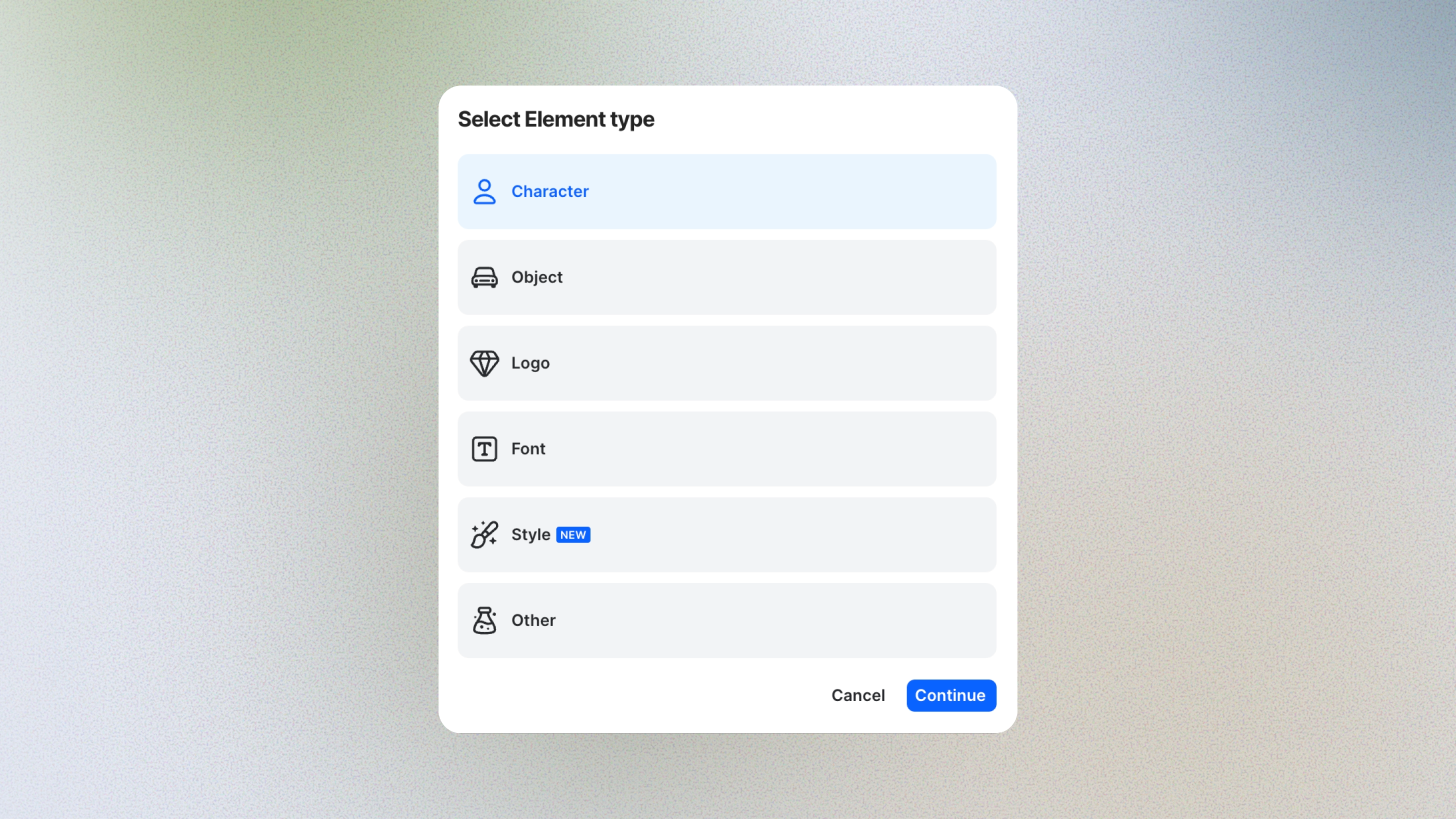
All Elements are stored and managed within the Brand Kit.
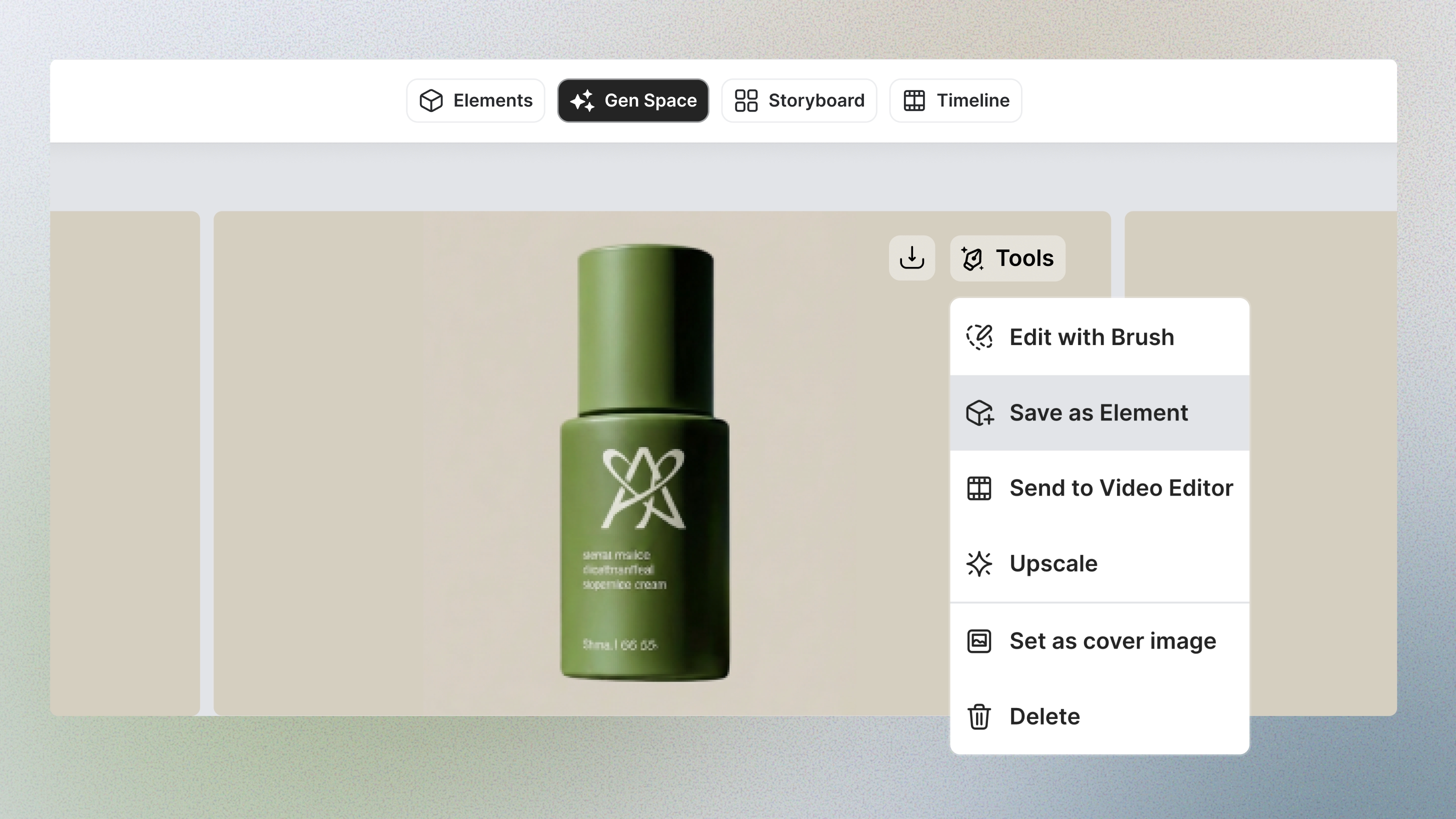
Step 4: Generate and Save Elements (Optional)
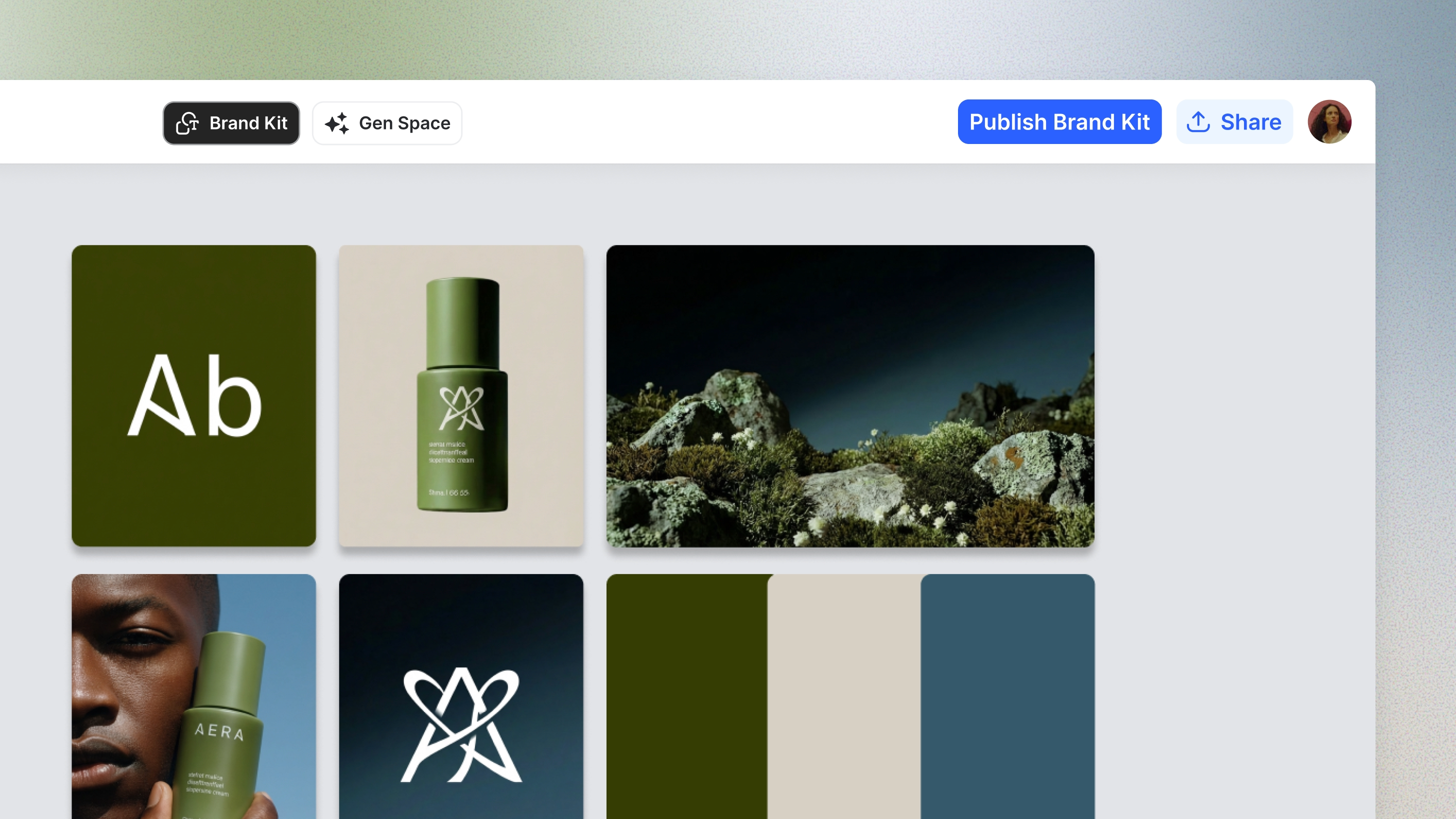
Creative Admins can also use Gen Space to generate new images and save them directly as Brand Elements, expanding the Brand Kit without leaving LTX Studio.
Step 5: Publish the Brand Kit
Once all Elements are ready, click Publish Brand Kit in the top-right corner.
A Brand Kit can be unpublished at any time. When unpublished, its Elements are no longer available to members.
Using a Brand Kit in a Project (Member Flow)
Before starting, make sure a Creative Admin has already published the relevant Brand Kit and shared it with you.
Step 1: Start a Project
From the home page, click Generate Images.
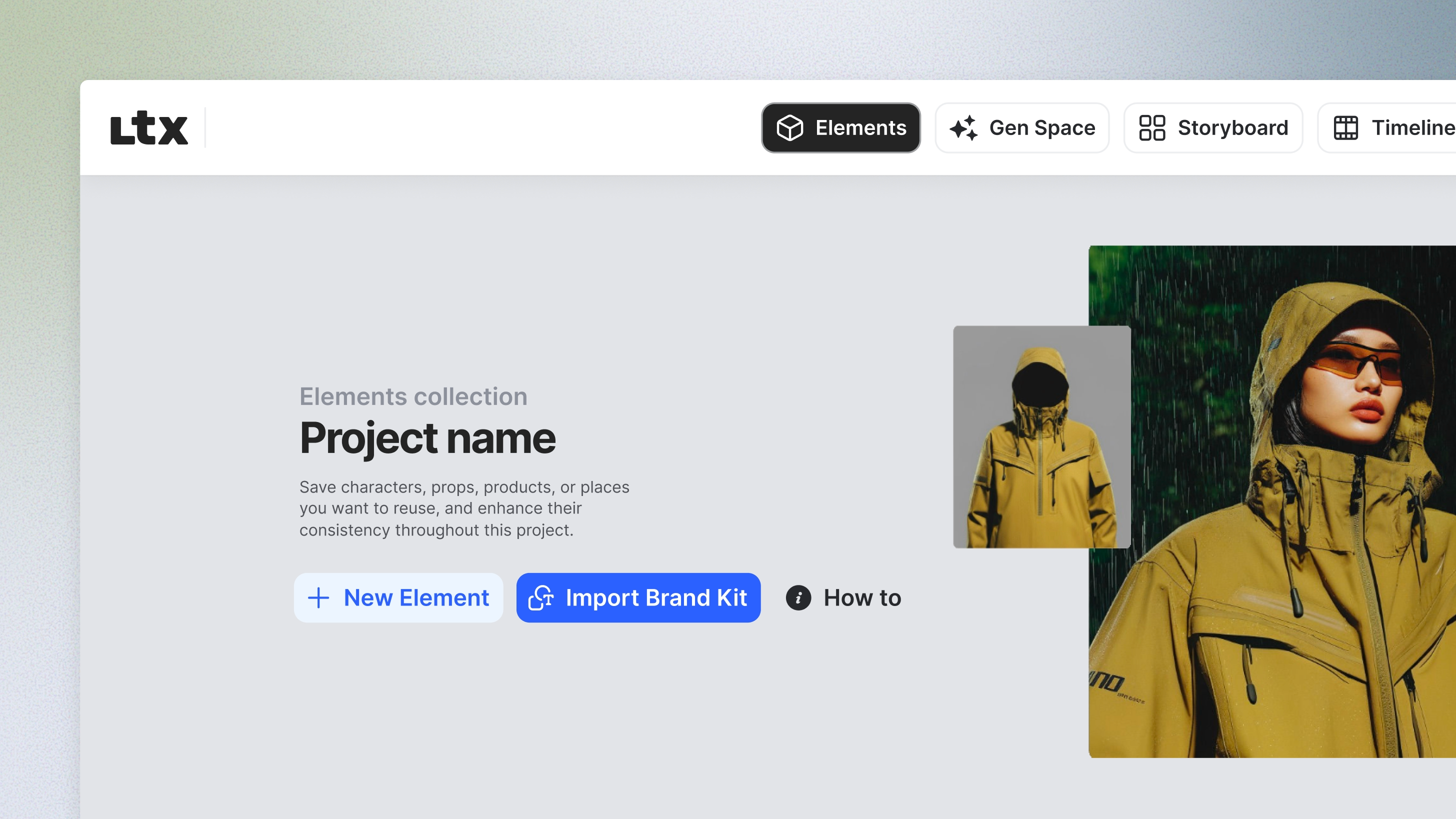
Step 2: Import a Brand Kit
- Open the Elements tab
- Click Import Brand Kit
- Select a Brand Kit and click Add
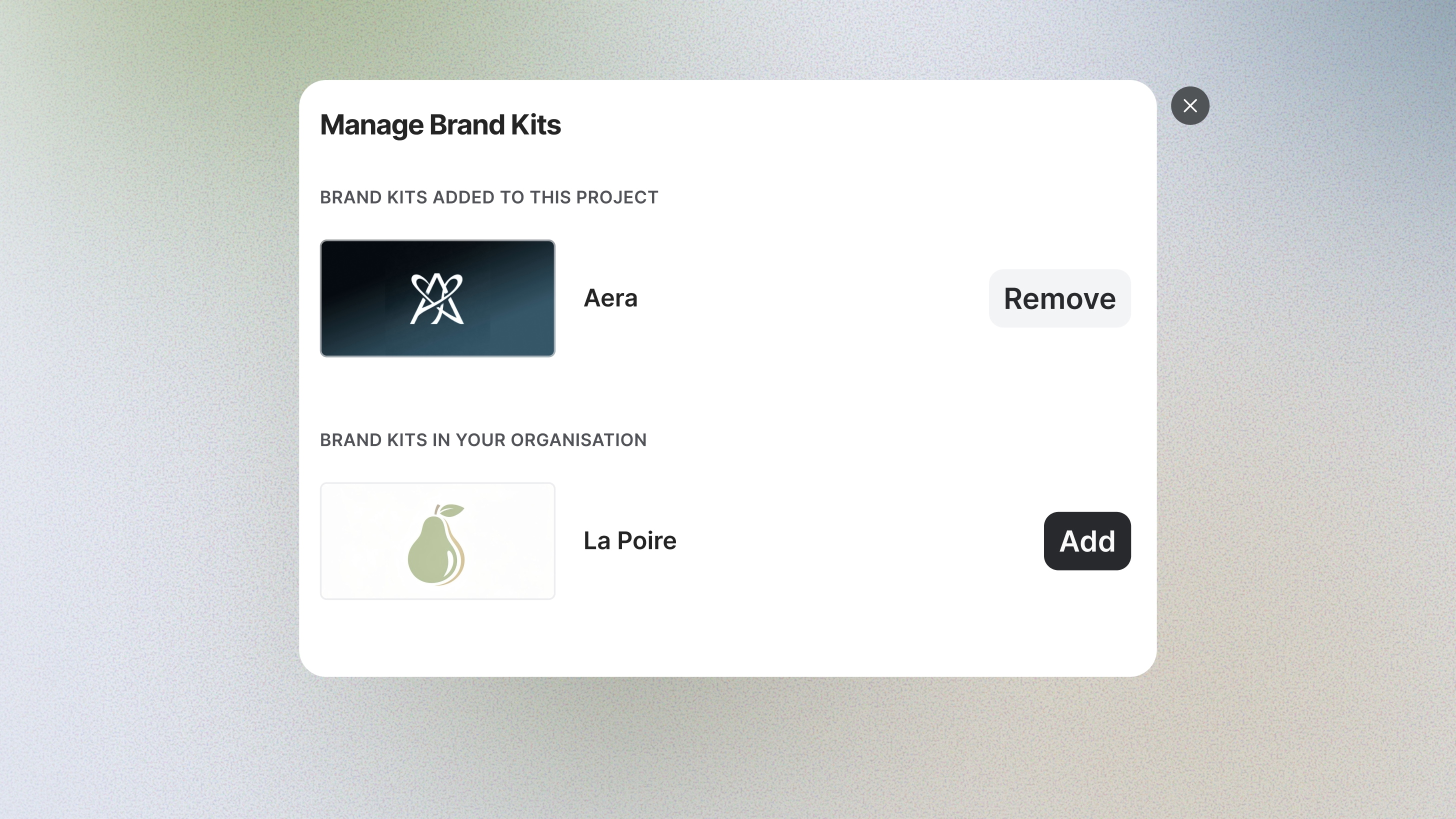
Imported Brand Kits can be managed at any time using Manage Brand Kits on the right side of the filters.
Step 3: Use Brand Elements in the Gen Space
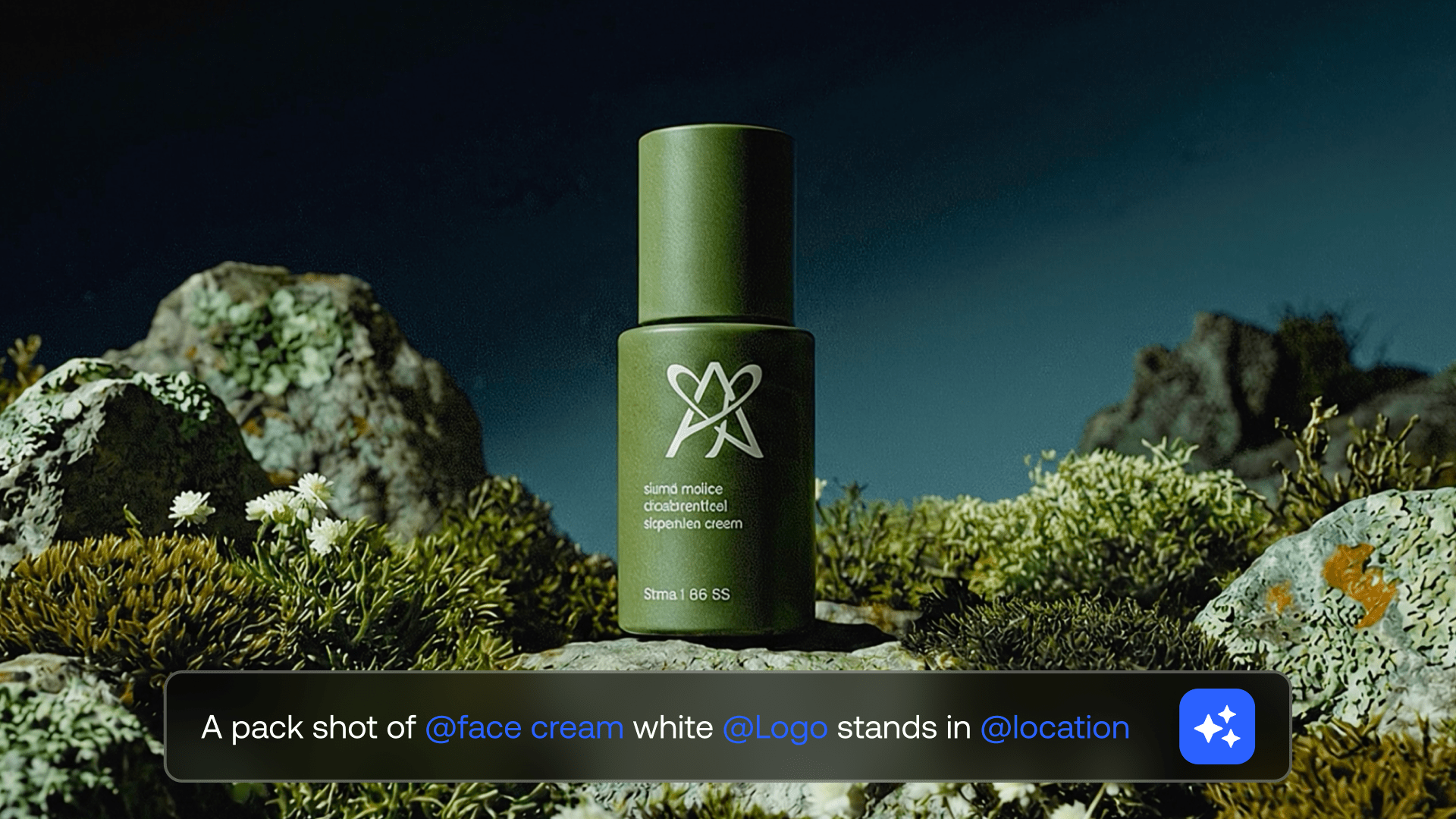
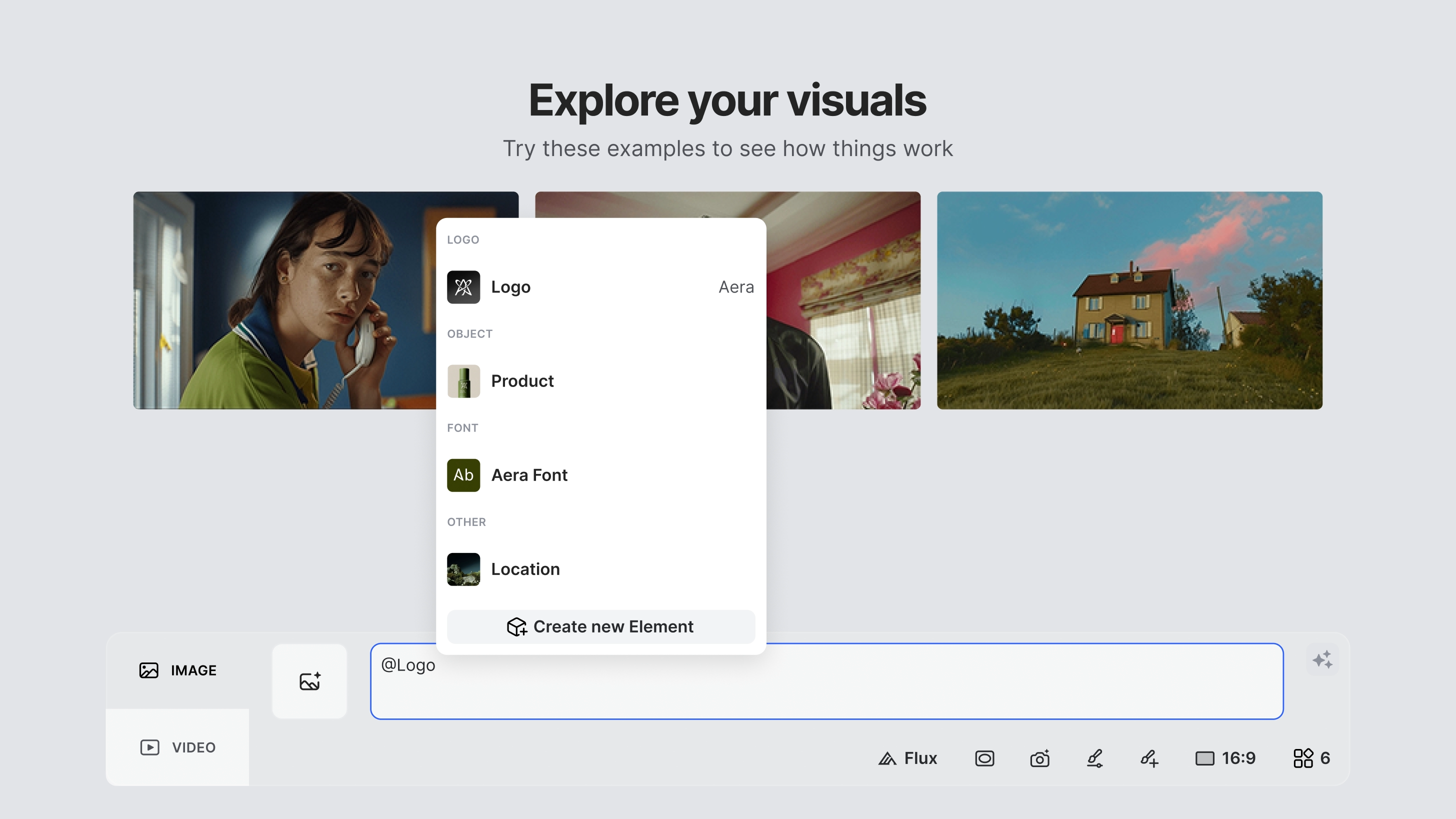
In Gen Space, type @ in the prompt to view available brand Elements.
Each Element appears with:
- Its name
- The Brand Kit it belongs to
This helps distinguish between similarly named assets across different Brand Kits.
Example:
@ACME logo on a red plastic bucket
Supporting Multi-Brand Organizations
Brand Kit supports scenarios where a single organization manages multiple brands.
Each Brand Kit can have:
- Its own Elements
- Separate permissions
- Independent updates
This allows teams to switch between brands while maintaining a consistent workflow.
Availability
Brand Kit is available as part of LTX Studio Enterprise plans.
With Brand Kit, LTX Studio becomes a system for scalable creative production. Teams can create faster, collaborate more effectively, and produce high volumes of content—without compromising brand integrity. As organizations grow, Brand Kit ensures that creative quality and consistency grow with them.
Related posts

Brand Kit FAQ
Can there be more than one Creative Admin?
Yes. Organizations can assign multiple Creative Admins to manage Brand Kits.
What happens when a Brand Kit is updated?
Updates made by the Creative Admin are automatically reflected and synced so members will always work with the most up-to-date assets.
Can enterprises without SSO use Brand Kit?
Brand Kit is designed for enterprise organizations with SSO enabled. To discuss setup options, your IT Admin will need to contact Customer Support.
How are Account Owner permissions granted?
Account Owner permissions are assigned during onboarding by Sales or Customer Success. They define the primary contacts who will be set as Account Owners and this is reflected in LTX Studio. Account Owners can manage and update user access in the Roles section of the platform.
How are Creative Admins and Member permissions granted?
Account Owners will be able to assign roles such as Creative Admins and Members in Roles page under Organisational Management. Access to a specific Brand Kit is controlled by the Creative Admin, who decides which Members can view and use each Brand Kit.
Are colors included as a Brand Kit Element?
Not yet. Support for colors as a Brand Kit Element is planned and will be available in a future update.