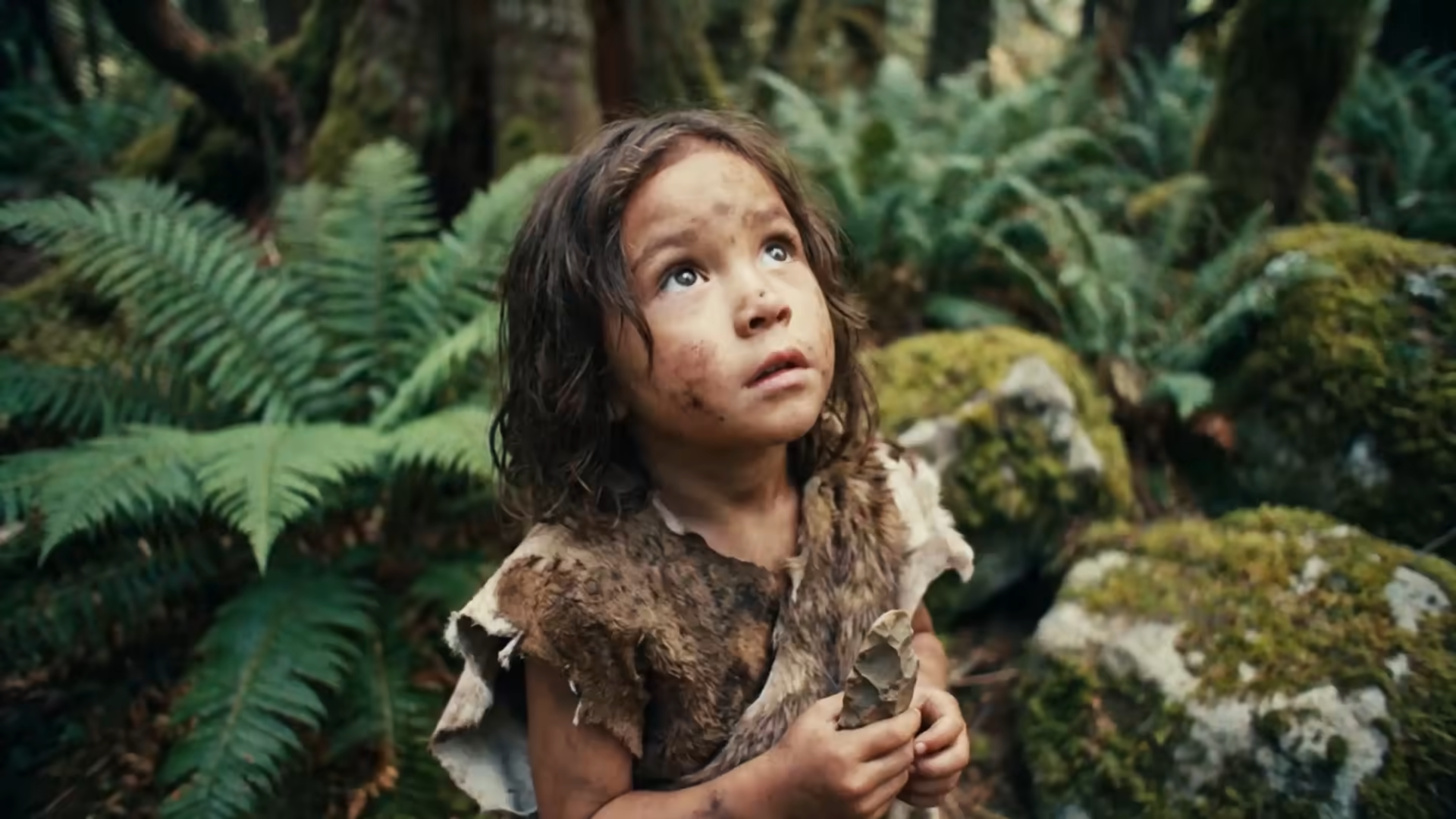

- Most AI video tools output 8-bit by default, causing immediate QC rejection at broadcast facilities — LTX Studio generates natively in 10-bit+ with 4K HDR EXR support to hit broadcast specs on first delivery.
- Getting broadcast-ready means setting the right parameters at generation (not fixing in post): 4K, correct frame rate, HDR enabled, exported to ProRes 422 HQ or DNxHD.
72% of broadcast submissions fail QC on the first pass. Most of those rejections come down to one thing: color depth.
You generate a stunning AI video. The creative is sharp, the timing is perfect, the motion is clean. Then it arrives at the broadcast facility, hits their quality control pipeline, and gets kicked back with a single note: "8-bit render. Resubmit in 10-bit."
That's not a creative problem. That's a technical one. And it's costing production studios hours of rework, missed delivery windows, and frustrated clients.
The gap between AI video generation and broadcast delivery is real. Most AI tools output 8-bit video by default. Broadcast standards demand 10-bit or 12-bit color depth to preserve highlight and shadow detail, prevent color banding, and survive the color grading gauntlet that professional content goes through. For enterprise studios, this isn't negotiable.
LTX Studio closes that gap. Built on LTX-2.3 with native 4K output and HDR EXR workflow support, it's designed for studios that need AI video to hit broadcast specs on the first delivery. Here's how to get there.
Why Broadcast Standards Matter for AI-Generated Video
Broadcast standards exist for a reason. They're built on decades of production experience, technical constraints, and the brutal reality of live transmission and archival storage.
When you submit video to a broadcast facility, you're not just delivering creative. You're handing over a file that will be:
- Color graded by experienced colorists (sometimes multiple times for different markets)
- Compressed and recompressed for different platforms and delivery formats
- Archived for years or decades
- Transmitted through systems that have zero tolerance for technical failures
Each of these steps stresses your video. Weak color depth crumbles under that pressure. Strong color depth survives it.
The problem gets worse with AI-generated video because it starts from a different foundation than traditionally shot footage. AI models generate video pixel-by-pixel, layer-by-layer. If the output encoding doesn't preserve enough color information, you lose subtle gradients, get banding in skies and shadows, and end up with a file that looks cheap next to traditionally produced content.
The 8-Bit vs. 10-Bit Problem
Here's the technical core: 8-bit color depth gives you 256 levels of information per color channel (Red, Green, Blue). That sounds like a lot until you're working with a sunset, a gradient, or a shadow transition. In 8-bit, those smooth transitions become visible steps of color. That's banding.
10-bit gives you 1024 levels per channel. 12-bit gives you 4096. The difference isn't academic. When a colorist grades your footage, they're pushing and pulling channels, crushing blacks, opening highlights. An 8-bit file gets posterized. A 10-bit file stays smooth.
For AI video, the issue is compounded. Because the generation process is different from traditional cinematography, the underlying color data is more sensitive to encoding choices. A traditional camera sensor captures light and encodes it. An AI model learns patterns and generates them. If the output format doesn't preserve enough information, you're throwing away fidelity you can't get back.
WildBrain, the major animation and content studio, flagged this exact issue. They were using AI video for pre-visualization and content creation, but their broadcast QC standards required 10-bit minimum. When AI output came in at 8-bit, it failed immediately. Not for creative reasons. For technical ones.
What QC Rejection Actually Costs
Missing broadcast specs doesn't just mean a note from the facility. It means:
- Re-rendering or re-encoding (4-12 hours depending on resolution)
- Delayed delivery to the client (often triggering contractual penalties)
- Lost confidence in the AI tool (studios default to traditional methods next time)
- Manual color correction work to salvage the file (defeating the purpose of automated generation)
A single QC rejection can add 2-3 days to a production timeline. For broadcast content on a 6-week schedule, that's a compounding problem. Miss one delivery window, and you're ripple-affecting everything downstream.
For agencies and studios charging by the project, every day of rework is margin gone. For in-house production teams, it's technical debt that pulls people away from the next project.
Broadcast Video Standards Your AI Output Must Meet
Broadcast QC isn't a single checklist. It's a pyramid of requirements that cascade from resolution down to codec compliance.
Color Depth Requirements
10-bit or 12-bit is the floor. Not optional. Not negotiable.
For most broadcast facilities, 10-bit YUV 4:2:0 (or 4:4:4 for higher-end work) is standard. This is the color space used by professional broadcast cameras and grading systems. It preserves more color information than 8-bit RGB while staying within manageable file sizes.
12-bit is common for archival, HDR, and high-end commercial work. It's the sweet spot for content that will be graded, re-graded, or transmitted across multiple platforms.
The reason this matters for AI video: your generation tool needs to output at the right color depth, not just claim to support it. Many AI tools generate in 8-bit internally and then upscale the output to 10-bit containers, which doesn't add information, just adds bytes. That fails QC immediately when the facility checks the actual bit depth of the image data.
LTX Studio generates natively in higher color depths. The new VAE (Variational Autoencoder) preserves more detail from the original signal, which means color information is maintained throughout generation, not added retroactively in post.
Resolution and Frame Rate Specs
Resolution depends on your delivery format:
- 1080p (1920x1080) is the standard for most broadcast and streaming delivery
- 4K (3840x2160) is required for premium content, archival, and theatrical applications
- DCI 4K (4096x2160) is specific to cinema delivery
LTX-2.3 outputs native 4K, which gives you maximum flexibility. You can deliver at 4K for archival or premium platforms, or downscale to 1080p if needed, and the downscaling won't introduce the compression artifacts that happen when you upscale from 1080p.
Frame rate matters just as much. Broadcast standards are strict:
- 23.976 fps (film standard, used in many broadcast environments)
- 24 fps (cinema standard)
- 29.97 fps (NTSC, common in North America)
- 25 fps (PAL, standard in Europe and many other regions)
- 59.94 fps or 60 fps (high-frame-rate broadcast, used for sports and fast-action content)
Pick the wrong frame rate and your file won't even ingest into the broadcast system. The facility won't spend time fixing it; they'll reject it and send it back.
Codec and Delivery Format Standards
Video codec is the encoding format. Broadcast facilities accept a narrow list:
- ProRes 422 HQ (professional standard, most broadcast facilities)
- DNxHD or DNxHR (Avid-based systems, common in larger post-production houses)
- H.264 (for some streaming and delivery contexts, but rare for broadcast)
The key detail: these codecs support 10-bit, but only if the file is encoded correctly. A 10-bit file in the wrong codec wrapper will fail QC.
Delivery format also matters. Broadcast facilities typically want:
- MOV container (QuickTime format)
- Color space: YUV 4:2:0 or 4:4:4
- Bit depth: 10-bit minimum
- Audio: PCM WAV or embedded in the MOV, uncompressed
Get any of these wrong and you're looking at a rejection or manual conversion work by the facility (which they'll charge for).
How to Get Broadcast-Ready Video from AI Tools
The path from generation to broadcast delivery has three critical steps.
Start with the Right Generation Settings
In LTX Studio, this starts at the generation stage, not post-processing.
Set your output parameters before you generate:
- Resolution: Select 4K native output. Don't generate at 1080p and upscale.
- Frame rate: Match your broadcast standard (25 fps for PAL regions, 29.97 for NTSC, 23.976 for film-based content).
- Color space: Select HDR if available. This preserves wider color gamut and more detail in highlights and shadows.
- Bit depth: If the tool offers a choice, select 10-bit or higher.
Many creators skip these settings and just hit "generate," defaulting to whatever the tool suggests. That's where the 8-bit problem starts. Set it consciously.
LTX Studio's generation pipeline preserves color information throughout the process. The improved VAE means subtle gradients, skin tones, and environmental details come through cleaner. This matters because broadcast QC includes color accuracy checks. A slightly blown-out sky or posterized shadow is visible, even if the file technically passes format checks.
Post-Processing for Color Depth Compliance
Even with correct generation settings, most broadcast submissions need color grading or adjustment.
If you're outputting from LTX Studio at 10-bit, the next step is typically a color grading pass. This is where broadcast-quality content separates from lower-tier work.
In your grading software (DaVinci Resolve, Adobe SpeedGrade, or Avid Symphony), work in 10-bit or 12-bit timeline. This ensures that every adjustment you make preserves color depth. If you grade in 8-bit and then export to 10-bit, you're just padding the file; you're not adding information.
Color grading on AI video is different from traditional footage. AI-generated video often has slightly different color characteristics than camera footage. Skies might be more saturated. Shadows might be slightly lifted. Skin tones might need adjustment to match broadcast color standards.
Spend time on these adjustments. This is where you avoid the "it looks like AI" comment from QC reviewers. Proper grading makes AI video indistinguishable from traditional footage.
HDR and EXR Workflows
For premium broadcast and theatrical content, HDR (High Dynamic Range) is becoming standard.
LTX-2.3 includes native HDR EXR workflow support. Here's why this matters:
EXR (OpenEXR) is a professional image format that stores floating-point data, which means it preserves a much wider range of brightness information than standard video codecs. An EXR file can store 32-bit float data per channel, which is overkill for delivery but essential for intermediate processing and color grading.
The workflow looks like this:
- Generate in LTX Studio with HDR settings enabled
- Export intermediate frames or sequences in EXR 16-bit or 32-bit
- Grade in your color grading software (Resolve, etc.) using the EXR sequence as source
- Export final delivery in broadcast-compliant 10-bit ProRes or DNxHD
Why does this matter? Because HDR content is graded differently than SDR (Standard Dynamic Range). You need more headroom in the highlights and more detail in the shadows to make HDR work. Working with EXR intermediate files gives you that headroom. You can push and pull the highlights without clipping, crush the blacks without losing detail.
Most AI tools can't do this workflow because they don't preserve enough color information in the generation stage. LTX Studio can because the output is designed for it.
The Production Pipeline: From AI Generation to Broadcast Delivery
Here's what a full broadcast-ready workflow looks like in practice:
Stage 1: Generation (LTX Studio)
- Input: Script, storyboard references, creative direction
- Settings: 4K, 24 fps (or your broadcast standard), HDR enabled
- Output: 4K HDR ProRes 422 HQ or EXR sequences
- Time: 10-30 minutes depending on length and complexity
Stage 2: Review and Rough Color (Grading Software)
- Import the LTX Studio output
- Do a rough color pass to match your broadcast color standards
- Check for any obvious color issues (unnatural skin tones, blown skies, shadow detail loss)
- Make notes on any areas needing additional work
- Time: 1-2 hours for 30-60 seconds of content
Stage 3: Final Color Grading (Colorist or In-House)
- Professional color grade to match your broadcast aesthetic
- Fix any AI-specific issues (unnaturally saturated colors, inconsistent lighting)
- Grade for different markets if needed (different color standards for different broadcast regions)
- Final QC check for compliance
- Time: 4-8 hours depending on complexity
Stage 4: Final Export (Grading Software)
- Export in broadcast-compliant format (10-bit ProRes 422 HQ or DNxHD)
- Verify resolution, frame rate, color space, and bit depth
- Generate checksums or verify files with broadcast facility's validation tool
- Time: 30 minutes to 1 hour depending on length
Stage 5: Facility Submission
- Upload to broadcast facility's ingest system
- Wait for QC pass (typically 2-4 hours)
- If QC fails, check the failure report and go back to the appropriate stage
For a 30-second commercial, this entire pipeline takes 6-10 hours. For 60-second content, add another 4-6 hours. That's still 80% faster than traditional production for the same result.
Common QC Failures and How to Avoid Them
These are the rejections studios see most often, and how to prevent them:
"8-bit color depth"
Root cause: Generated in 8-bit or exported to 8-bit container.
Fix: Set LTX Studio to generate in 10-bit, export to 10-bit ProRes or DNxHD. Verify color space in your export settings.
"Color banding in shadows/sky"
Root cause: Insufficient color depth for the gradient complexity in the image.
Fix: If this appears in your LTX Studio output, re-generate with HDR enabled. If it appears after grading, you graded in 8-bit; switch to 10-bit grading timeline.
"Frame rate mismatch"
Root cause: Generated at 30 fps but broadcast standard is 29.97 fps (or vice versa).
Fix: Set frame rate explicitly in generation settings. Don't assume the default is correct.
"Rec. 709 compliance failure"
Root cause: Color values are outside the legal broadcast range (super-whites or super-blacks).
Fix: Use broadcast-safe color correction filters in your grading software. Most video tools have a "broadcast safe" check built in; enable it during export.
"Codec not supported"
Root cause: Exported in H.264 or other non-compliant codec.
Fix: Stick to ProRes 422 HQ or DNxHD for broadcast. Never export H.264 for broadcast submission.
"Audio sync issue"
Root cause: Audio and video frame rates don't match, or audio wasn't included in the export.
Fix: If you're adding music or voiceover post-generation, ensure audio frame rate matches video frame rate. Embed audio in the QuickTime container at the same sample rate (typically 48 kHz for broadcast).
"Color accuracy issue"
Root cause: Skin tones are unnatural, or colors don't match the creative brief.
Fix: This is where a proper color grading pass makes all the difference. Have a colorist review the output, not just an editor.
Conclusion
Broadcast standards aren't obstacles. They're the difference between content that looks cheap and content that looks professional.
For studios using AI video, getting broadcast-ready output isn't about fighting the system; it's about understanding the system and building it into your workflow from day one. Start with the right generation settings. Grade in the right color depth. Export in the right format. Verify before you submit.
LTX Studio is built for this workflow. Native 4K output, HDR EXR support, color depth preservation throughout the pipeline—these aren't marketing features. They're production necessities.
If you're tired of QC rejections and rework cycles, start here: set your generation parameters consciously. Grade in 10-bit. Export to ProRes 422 HQ. Submit with confidence.
Your broadcast partner will see the difference. So will your audience.
Related posts